---
title: "AutoDNS MCP – managing domains with AI agents"
description: "Connect Claude Code, Claude Desktop, Cursor or VS Code to the AutoDNS MCP server and manage domains, zones and contacts in natural language."
url: "https://help.internetx.com/en/api-v1/autodns-mcp/"
lang: "en"
section: "API (overview)"
reviewed: "Mon Nov 09"
---
# AutoDNS MCP – managing domains with AI agents
## What is the AutoDNS MCP?
The AutoDNS MCP server (Model Context Protocol) lets AI agents such as Claude Code, Claude Desktop, Cursor or VS Code manage domains, zones and contacts in natural language, without hand-written REST calls or OpenAPI clients.
It is a hosted MCP endpoint that translates the agent's tool calls into authenticated requests against the AutoDNS API. Point the agent at the endpoint, supply your API key, and it can answer requests such as "list my domains expiring this month" or "show the cancellation status for example.com" with structured, ready-to-use results.
### Why use it instead of the API directly?
- **No client code.** The MCP server already knows the AutoDNS endpoints, request formats and response fields; the agent finds and calls them on its own.
- **Tool descriptions made for agents.** Every tool documents its parameters and defaults so that a language model picks the right tool and the right filters.
- **One integration, many agents.** Every client that speaks MCP over HTTP connects the same way.
If you would rather call the JSON API directly, see [JSON – API basics](/en/api/core-json/) or the [OpenAPI specification on GitHub](https://github.com/InterNetX).
## Prerequisites
- **An AutoDNS API key.** Every request to the MCP endpoint carries the key in the `X-Domainrobot-Api-Key` header. The MCP server passes it straight through to AutoDNS and never stores it.
- **The endpoint URL:** `https://mcp.domain-robot.org/mcp/adns`
All clients connect to this URL over Streamable HTTP and send the same header; only the configuration format differs.
## Creating an API key
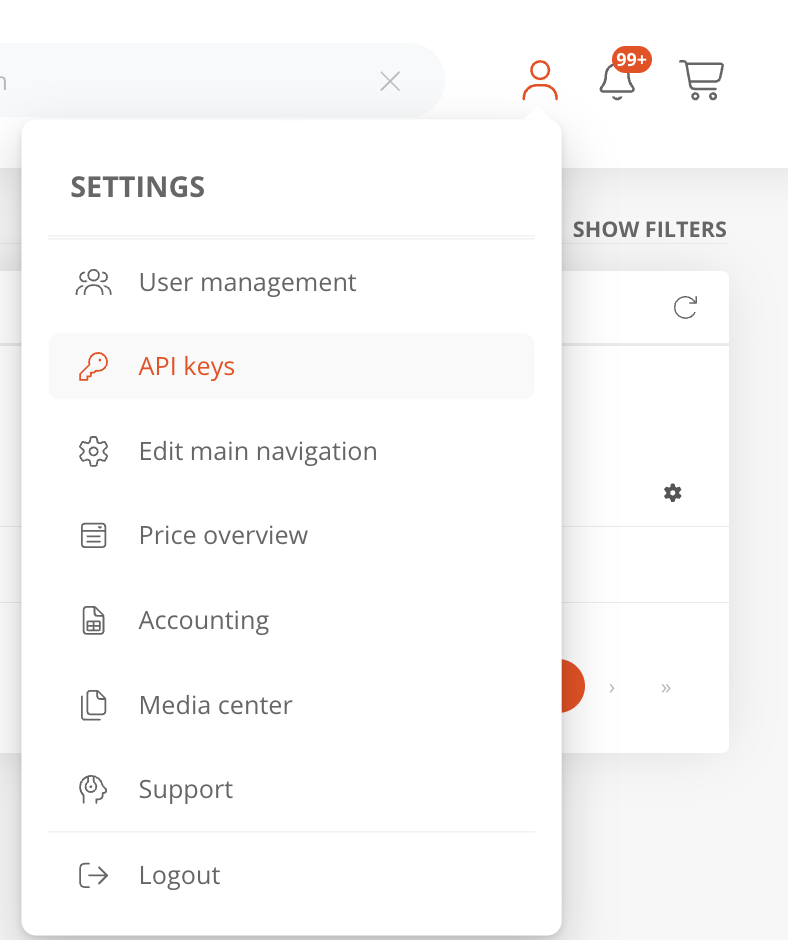
1. In AutoDNS, click the user icon in the top right and choose **API keys**. This opens **User management → API**.
 2. Click **+** to create a new key.
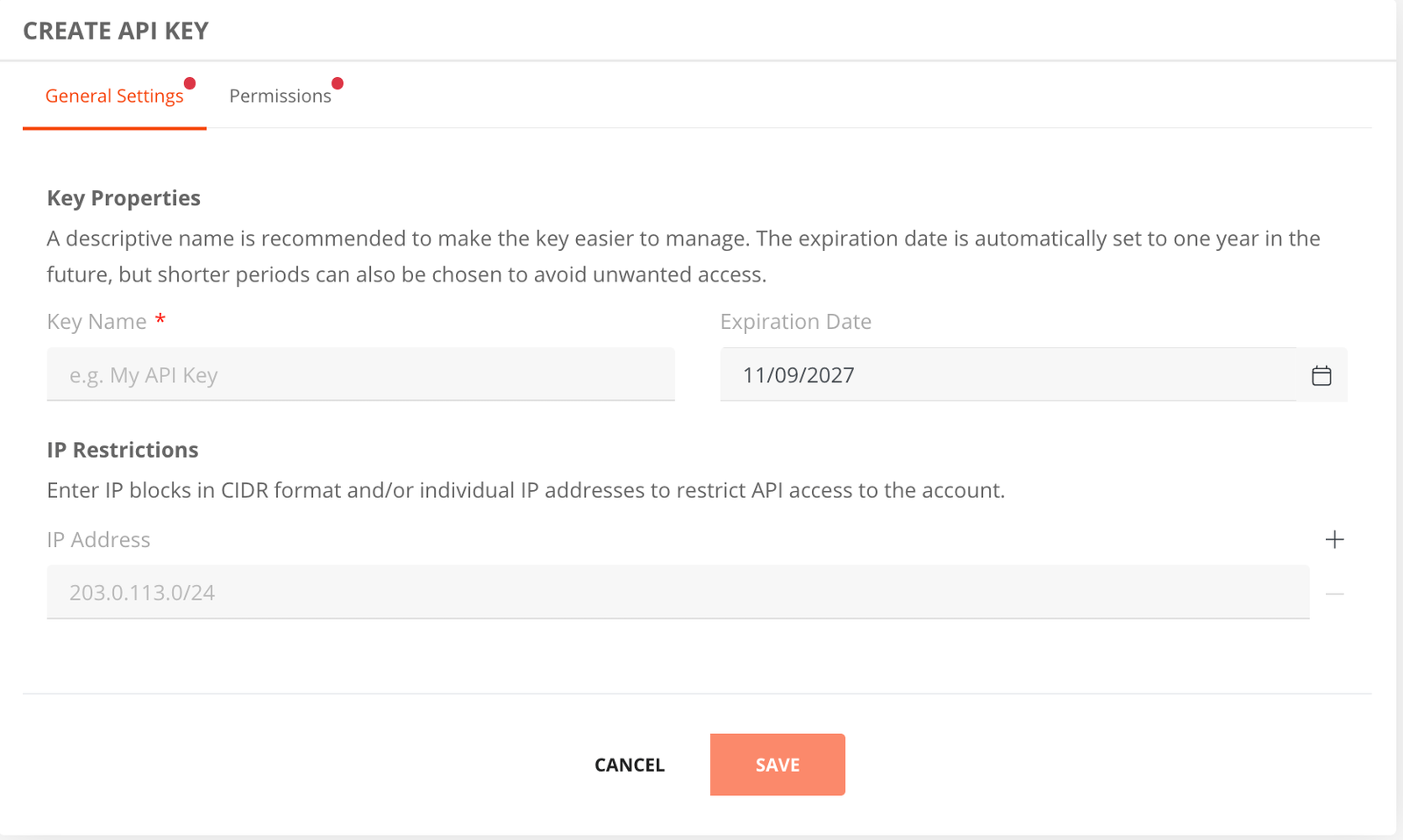
3. On the **General Settings** tab, enter a **Key Name**. A descriptive name makes the key easier to manage.
4. The **Expiration Date** is set one year ahead by default. A shorter period reduces the risk of unwanted access.
5. Leave **IP Restrictions** empty for use with the MCP. The requests reach AutoDNS from the MCP server, not from your own computer, so a restriction to your own IP addresses would block them.
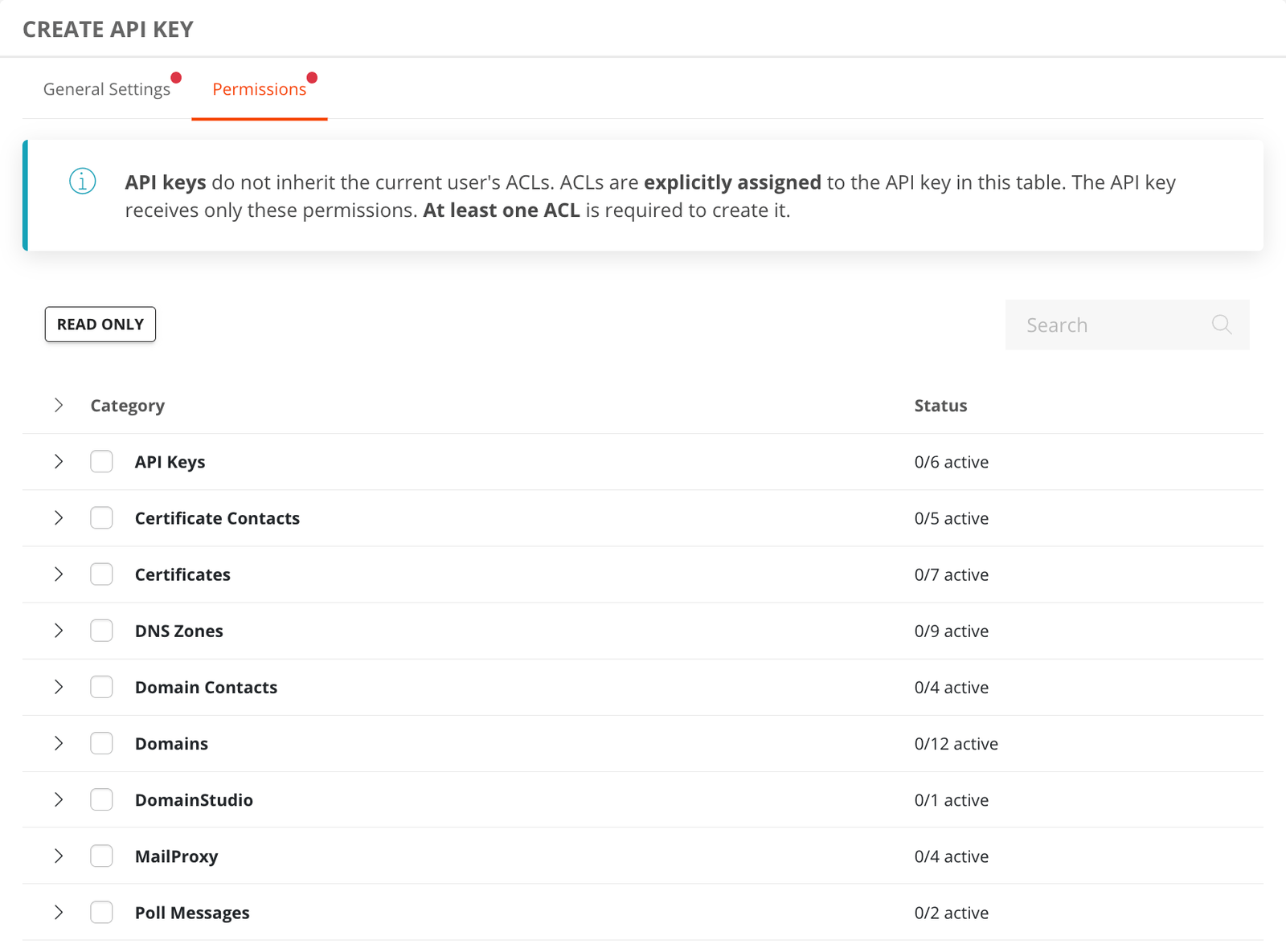
 6. On the **Permissions** tab, assign the ACLs. API keys do **not** inherit the ACLs of the current user: the key receives exactly the permissions selected in this table and no others, and at least one ACL is required.
 7. Click **Save**.
Grant only the permissions the agent needs. If it should only look things up, read permissions are enough.
**Note**
Never commit the API key to a repository or paste it into a tracked file. Keep it in a local environment variable or in a configuration file that is excluded from version control, for example your client's user-level settings rather than a project file.
## Setup
In every example, replace `` with your API key.
### Claude Code (CLI)
```text
claude mcp add --transport http adns https://mcp.domain-robot.org/mcp/adns \
--header "X-Domainrobot-Api-Key: "
```
Or add the entry directly to `~/.claude.json`:
```text
{
"mcpServers": {
"adns": {
"type": "http",
"url": "https://mcp.domain-robot.org/mcp/adns",
"headers": {
"X-Domainrobot-Api-Key": ""
}
}
}
}
```
### Claude Desktop
Open **Settings → Developer → Edit Config** and add an entry to `claude_desktop_config.json`:
```text
{
"mcpServers": {
"adns": {
"type": "http",
"url": "https://mcp.domain-robot.org/mcp/adns",
"headers": {
"X-Domainrobot-Api-Key": ""
}
}
}
}
```
Restart Claude Desktop for the new server to appear.
### Cursor
Create an `mcp.json`, either in the project at `.cursor/mcp.json` or globally at `~/.cursor/mcp.json`:
```text
{
"mcpServers": {
"adns": {
"url": "https://mcp.domain-robot.org/mcp/adns",
"headers": {
"X-Domainrobot-Api-Key": ""
}
}
}
}
```
A project file contains the API key once filled in, so keep it out of version control.
### VS Code (Copilot)
Create `.vscode/mcp.json` in the workspace, or use **MCP: Add Server** from the command palette:
```text
{
"servers": {
"adns": {
"type": "http",
"url": "https://mcp.domain-robot.org/mcp/adns",
"headers": {
"X-Domainrobot-Api-Key": ""
}
}
}
}
```
To keep the key out of the file entirely, reference it as an input variable instead; VS Code then asks for it when connecting. The syntax is described in [VS Code's MCP documentation](https://code.visualstudio.com/docs/copilot/chat/mcp-servers).
### ChatGPT
ChatGPT's custom connectors (**Settings → Connectors → Developer mode**) currently authenticate only via OAuth or without authentication. They cannot send a static header such as `X-Domainrobot-Api-Key`, so ChatGPT cannot connect to the AutoDNS MCP directly at the moment. Use one of the clients above, or put an OAuth-capable proxy in front of the endpoint.
## Using it
Once connected, the agent loads the available tools from the MCP server by itself. Ask in plain language, for example "list my domains that expire this month" or "show the DNS records for example.com". To find out what the agent can do, ask it which AutoDNS tools it has.
## Guardrails
Tasks that incur costs or are destructive must be confirmed explicitly. For this, an email with a PIN is sent to the email address stored for the user. The agent can then process this PIN directly.