---
title: "Configuring the Whois Pro page"
url: "https://help.internetx.com/en/domains/configuring-whois-pro-page/"
lang: "en"
section: "Domains"
---
# Configuring the Whois Pro page
Since 25 May 2018, the EU General Data Protection Regulation (GDPR (EU) 2016/679) exists, which regulates the protection of natural persons with regard to the processing of personal data.
## Changes for .DE domains at DENIC
This is now displayed for the domain:
- the domain status (registered/not registered)
- the technical data (e.g. name servers and information on DNS keys)
### Information on how to contact
General Request: Contact address for general and technical questions about the domain.
- Abuse Contact: Contact address for requests and information regarding a possibly illegal or abusive use of the domain.
The domain holder's data is not visible to third parties at DENIC. DENIC will only provide information on the domain holder in certain cases (see [https://www.denic.de/service/whois-service/](https://www.denic.de/service/whois-service/)). Upon request, the homain holder must still be able to provide a German delivery address. The contact details of the technical and zone manager (TechC, ZoneC) and the administrative contact (AdminC) are no longer recorded and are therefore no longer displayed in the domain query.
Instead of an email address for the General Request and Abuse Contact, DENIC also allows you to use an URL that optionally leads to a new **Whois Pro page**.
This means that you are no longer dependent on email addresses in Whois, which may contain personal data such as first name and surname and therefore may not be published according to the GDPR.
If Whois Pro is NOT activated, the general request and abuse contact for **.DE** domains will be forwarded to the email address **domain-abuse@domain-robot.org** as before.
## Changes for gTLDs at PSI-USA (Whois/RDAP)
- For gTLDs and new gTLDs, the output of data in the Whois has also been severely restricted. Most of the data is protected with the note "REDACTED FOR PRIVACY" and is no longer published. For the contacts in Whois there was only one contact form at contact.domain-robot.org. For all gTLDs there will always be a direct link to the **Whois Pro page** in **Whois/RDAP**.
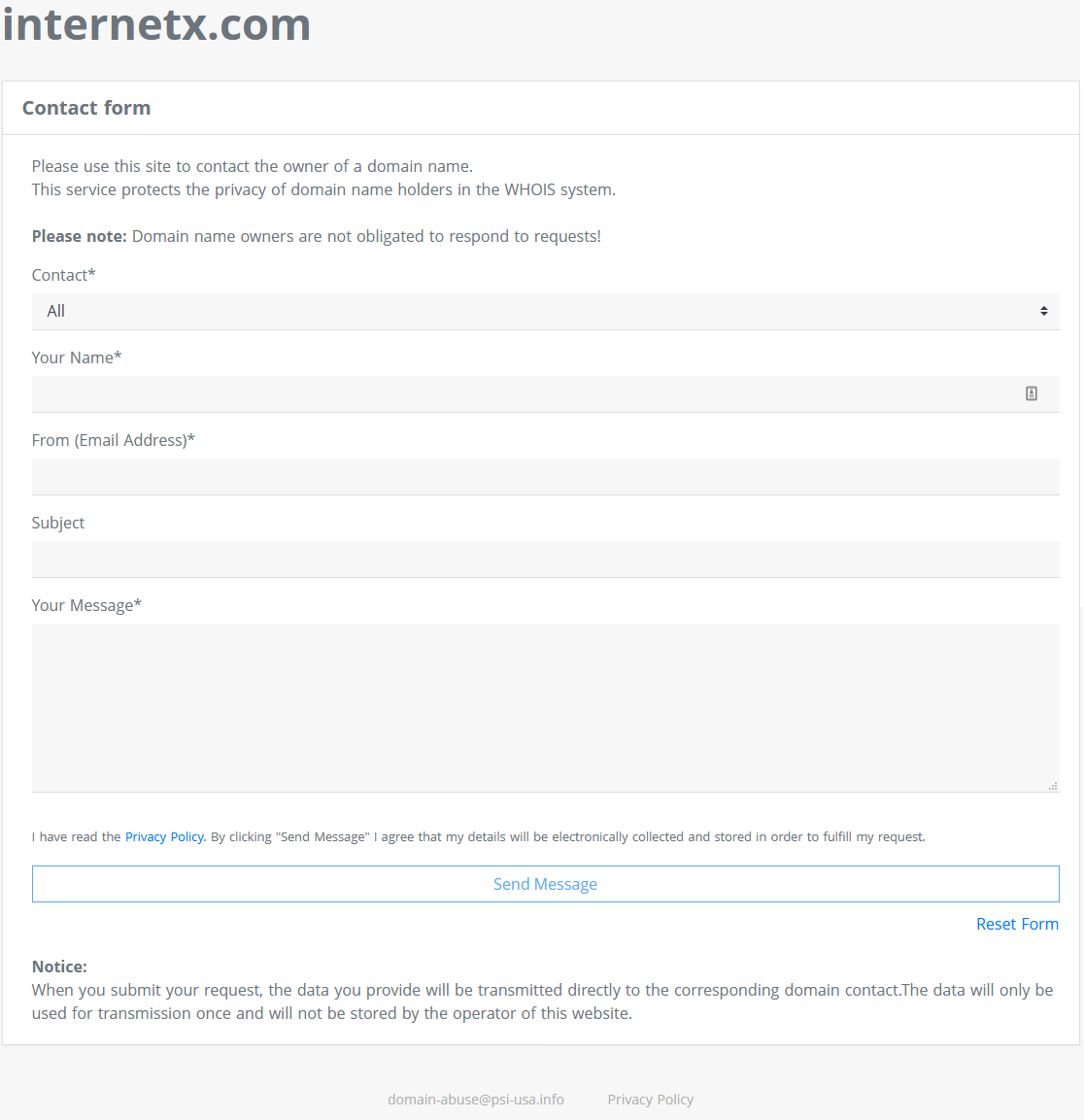
- If Whois Pro is not activated, a **contact form** is displayed for **gTLDs** as before.
 ## The Whois Pro page
You can activate the Whois Pro page in the profile per user and define the content individually. After activating Whois Pro, the link in Whois/RDAP will lead you directly to the **Whois Pro page**.
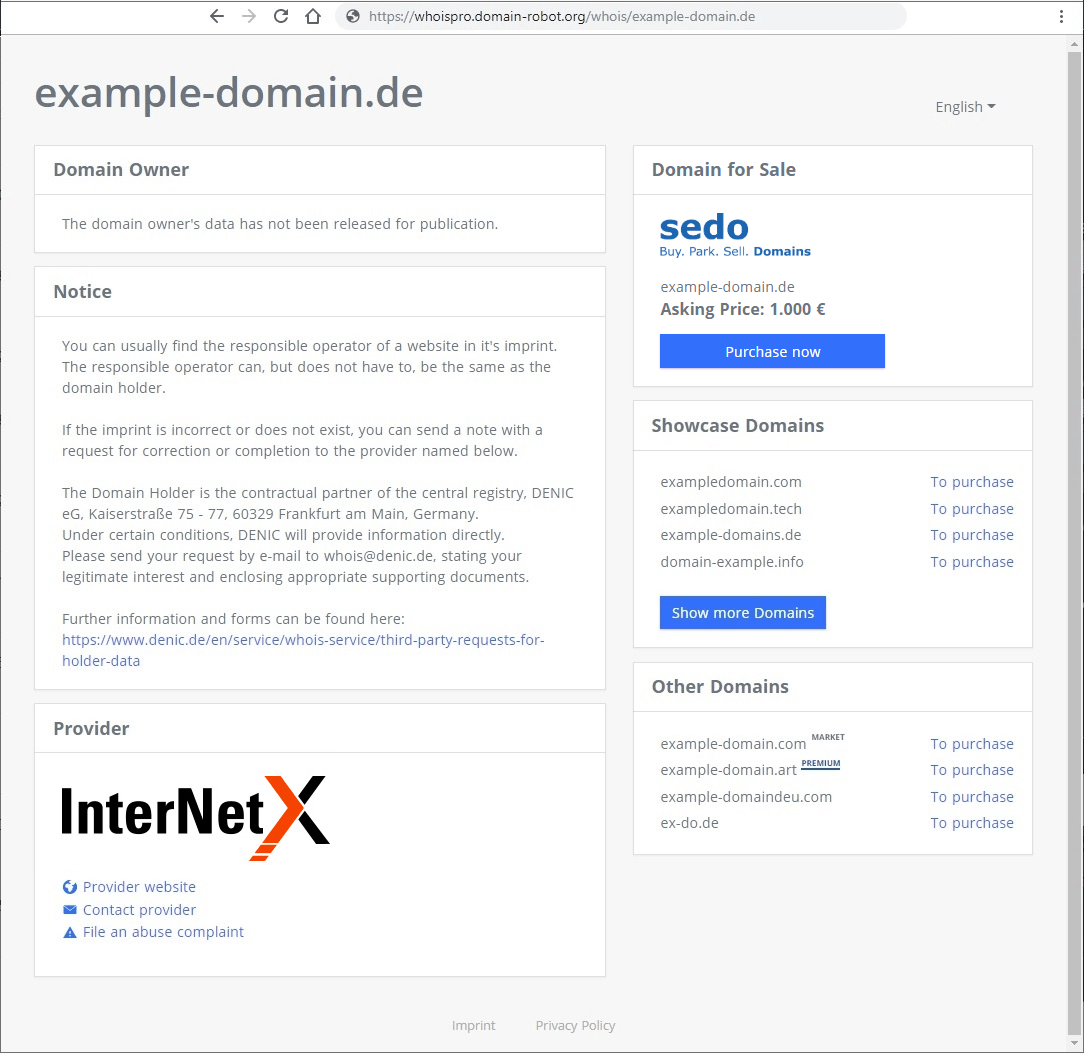
### Whois Pro sample page for .DE
## The Whois Pro page
You can activate the Whois Pro page in the profile per user and define the content individually. After activating Whois Pro, the link in Whois/RDAP will lead you directly to the **Whois Pro page**.
### Whois Pro sample page for .DE
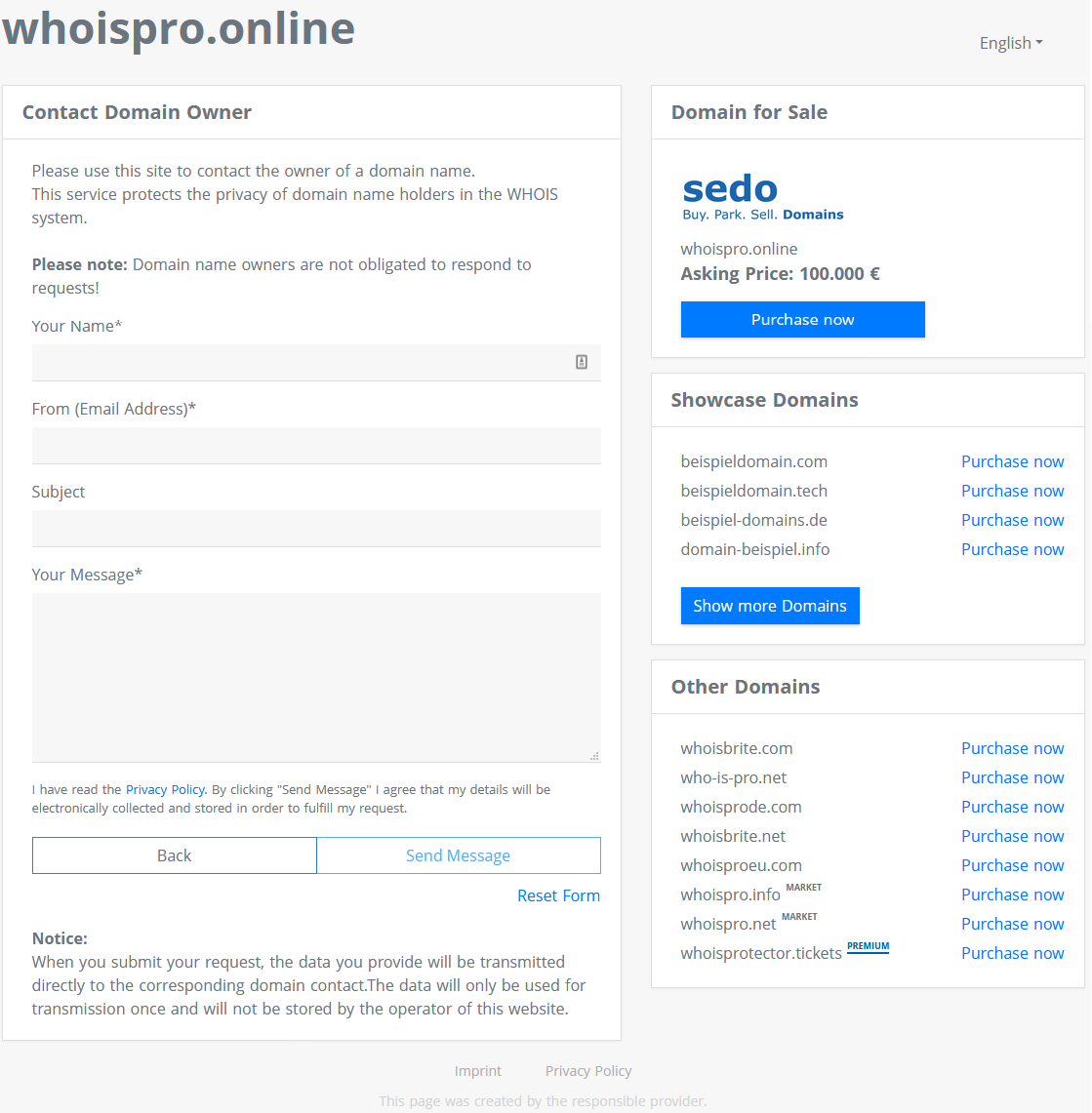
 ### Whois Pro sample page for gTLDs
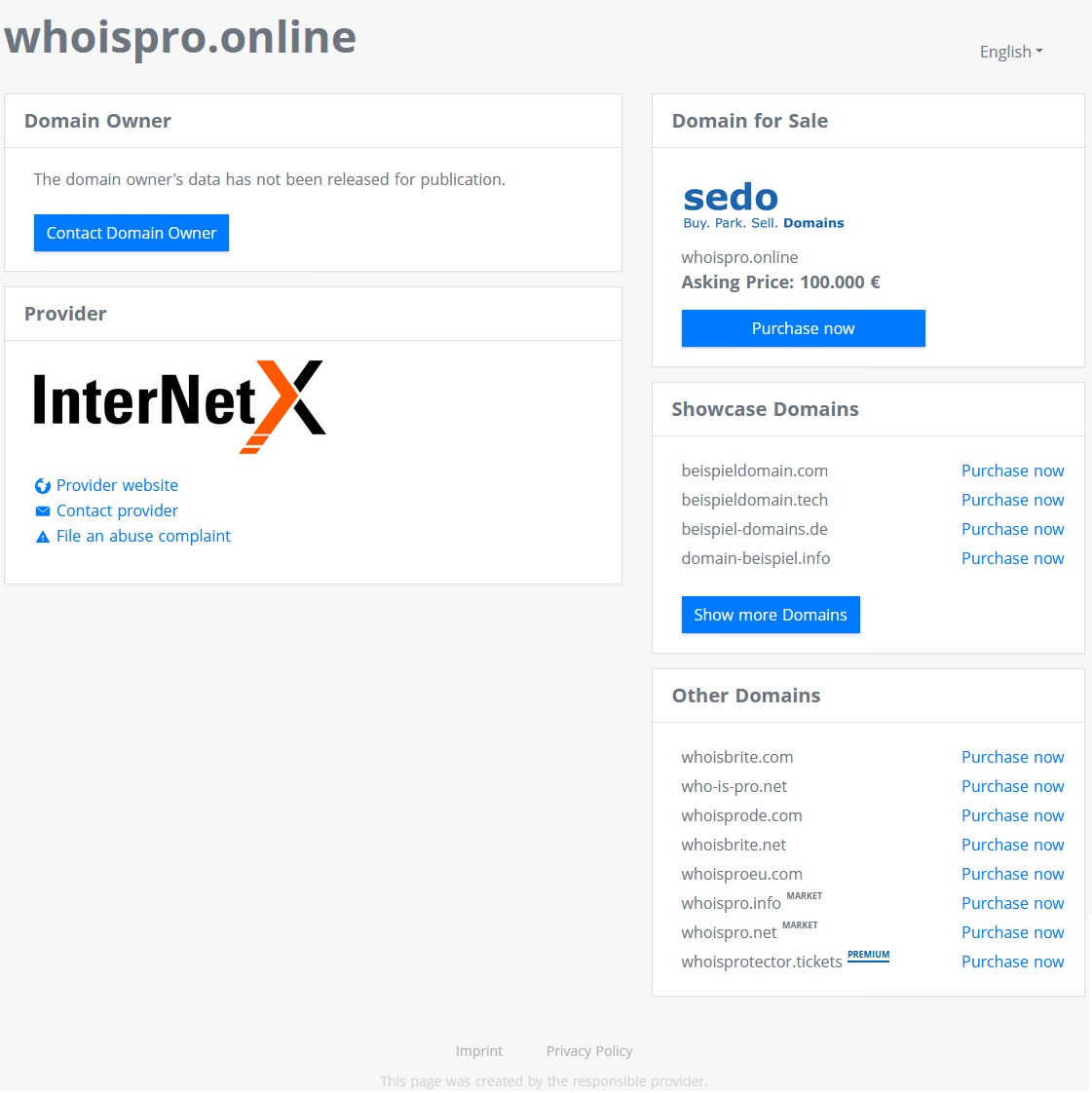 For gTLDs with activated Whois Pro, the visitor can send a contact request to the domain owner directly from the page.
 ## Configuring the Whois Pro page in the user profile
The customization for the Whois Pro page can be found in the **User Profil**e on the **Whois Pro** tab.
**AutoDNS** (login.autodns.com)**:**
You call up the user profile with **User Management / User Configuration / User Profile**.
**AutoDNS Platform** (cloud.autodns.com)**:**
You call up the user profile with **Settings / User Management / Profile**.
### The effect of the settings on subusers
For all settings, you can define how they are to affect your subusers. You specify this in the **Inheritance for Subusers** form field.
#### AutoDNS
#####
## Configuring the Whois Pro page in the user profile
The customization for the Whois Pro page can be found in the **User Profil**e on the **Whois Pro** tab.
**AutoDNS** (login.autodns.com)**:**
You call up the user profile with **User Management / User Configuration / User Profile**.
**AutoDNS Platform** (cloud.autodns.com)**:**
You call up the user profile with **Settings / User Management / Profile**.
### The effect of the settings on subusers
For all settings, you can define how they are to affect your subusers. You specify this in the **Inheritance for Subusers** form field.
#### AutoDNS
#####  ##### AutoDNS Platform
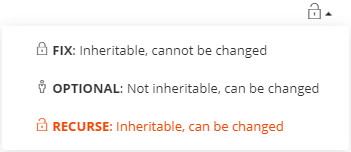 - OPTIONAL: the subusers have a empty input field and can make their own settings.
- RECURSE: the settings are taken over by subusers, who can change them.
- FIX: the settings are taken over by subusers, who cannot change them.
### Provider settings
In the **Provider** section, information about the provider can be displayed, such as the logo, the website, a link to the contact page, a link to an abuse URL and to the imprint page.
- OPTIONAL: the subusers have a empty input field and can make their own settings.
- RECURSE: the settings are taken over by subusers, who can change them.
- FIX: the settings are taken over by subusers, who cannot change them.
### Provider settings
In the **Provider** section, information about the provider can be displayed, such as the logo, the website, a link to the contact page, a link to an abuse URL and to the imprint page.
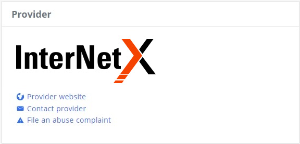 In the **Provider Settings** form section, you can specify the data and URLs for the provider's specific Web pages. To display the data on the Whois Pro page, select the **Show Provider** check box.
#### AutoDNS
In the **Provider Settings** form section, you can specify the data and URLs for the provider's specific Web pages. To display the data on the Whois Pro page, select the **Show Provider** check box.
#### AutoDNS
 ##### AutoDNS Platform
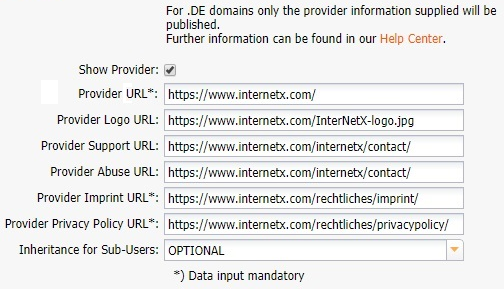
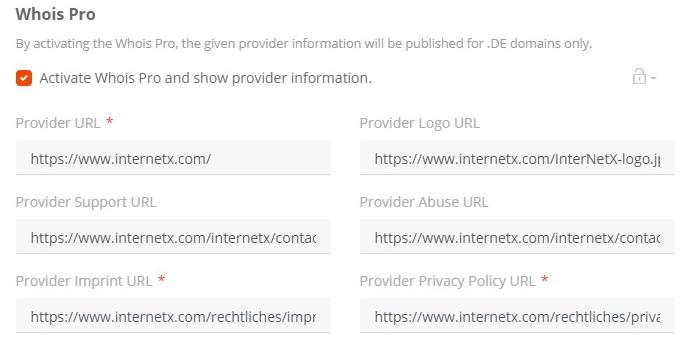 - Provider URL\*: URL of the provider's website
- Provider Logo URL: URL for the page on which the logo is located. (please use a https link to avoid mixed content error message from browsers!)
- Provider Support URL: URL to the provider's support page
- Provider Abuse URL to the provider's abuse email page.
- Provider Imprint URL\*: URL of the provider's imprint page
- Provider Privacy Policy URL\*: URL of the provider's privacy policy page
\* the "Provider URL", "Provider Imprint URL" and "Provider Privacy Policy URL" have to be deposited in order to activate Whois Pro! The URLs for Imprint and Privacy Policy are linked at the end of the Whois Pro page.
- Provider URL\*: URL of the provider's website
- Provider Logo URL: URL for the page on which the logo is located. (please use a https link to avoid mixed content error message from browsers!)
- Provider Support URL: URL to the provider's support page
- Provider Abuse URL to the provider's abuse email page.
- Provider Imprint URL\*: URL of the provider's imprint page
- Provider Privacy Policy URL\*: URL of the provider's privacy policy page
\* the "Provider URL", "Provider Imprint URL" and "Provider Privacy Policy URL" have to be deposited in order to activate Whois Pro! The URLs for Imprint and Privacy Policy are linked at the end of the Whois Pro page.

 ### Hide provider data on the Whois Pro page
If you do not want to publish the provider data on the Whois Pro page, you must clear the **Show Provider** check box.
#### AutoDNS
### Hide provider data on the Whois Pro page
If you do not want to publish the provider data on the Whois Pro page, you must clear the **Show Provider** check box.
#### AutoDNS
 ##### AutoDNS Platform
 ### Settings for the "This domain is for sale area"
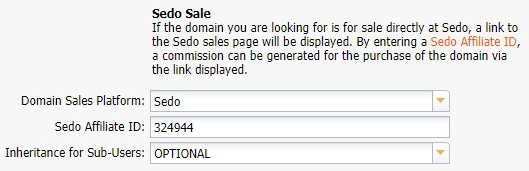
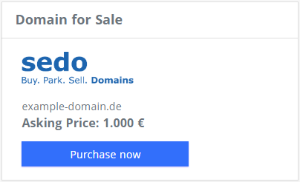 You can configure the area **Domain for Sale** in the form section **Additional Settings - Sedo Sale**.
#### AutoDNS
#####
You can configure the area **Domain for Sale** in the form section **Additional Settings - Sedo Sale**.
#### AutoDNS
#####  ##### AutoDNS Platform
 ### Settings for the "Showcase Domains" area
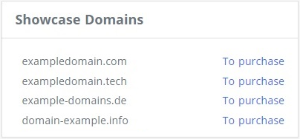 Here you can offer selected domains for sale. You can switch directly to Sedo via the **Buy** link displayed on the Whois Pro page behind each domain.
If a registered domain is for sale at Sedo, it will also be advertised there. If the registered domain is not for sale at Sedo, the Sedo Broker Service page will automatically be displayed.
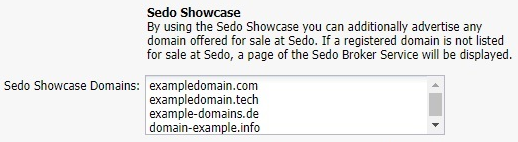
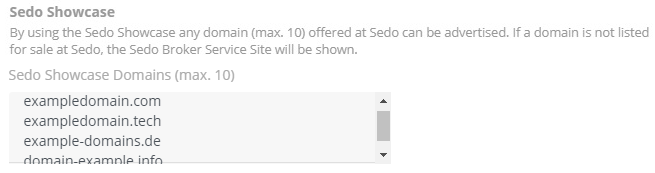
You can enter the domains you want to offer for sale in the **Sedo Showcase Domains** field in the **Additional Settings / Sedo Showcase** section.
#### AutoDNS
Here you can offer selected domains for sale. You can switch directly to Sedo via the **Buy** link displayed on the Whois Pro page behind each domain.
If a registered domain is for sale at Sedo, it will also be advertised there. If the registered domain is not for sale at Sedo, the Sedo Broker Service page will automatically be displayed.
You can enter the domains you want to offer for sale in the **Sedo Showcase Domains** field in the **Additional Settings / Sedo Showcase** section.
#### AutoDNS
 ##### AutoDNS Platform
 You can add the **Show more Domains** button, which gives direct access to your Sedo domain portfolio.
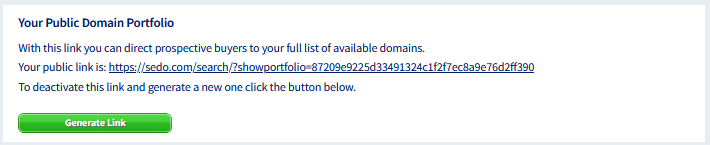
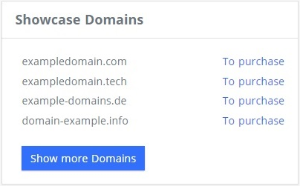 Enter the URL of your Sedo domain portfolio in the **Public Domain Portfolio** field.
##### AutoDNS
Enter the URL of your Sedo domain portfolio in the **Public Domain Portfolio** field.
##### AutoDNS
 ##### AutoDNS Platform
 You can find the link at Sedo here: **My Account / Account Settings / Your Public Domain Portfolio**.
 ### Settings for the "Other Domains" area
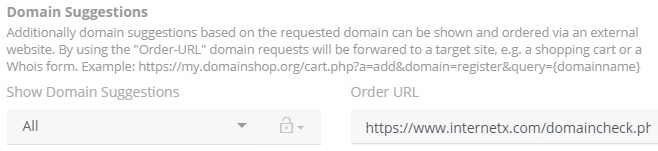
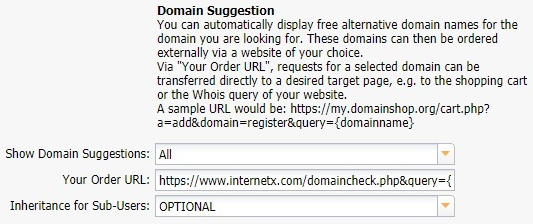
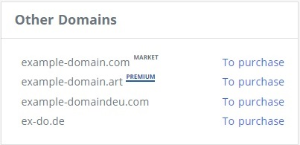 The **Other Domains** section displays domain suggestions that match the domain entered in the DENIC domain query. You can select whether and which domains are to be displayed here under **Additional Settings** in the **Show Domain Suggestions** area. You can choose whether **None** or **All** or **All except Premium** are displayed.
#### AutoDNS
The **Other Domains** section displays domain suggestions that match the domain entered in the DENIC domain query. You can select whether and which domains are to be displayed here under **Additional Settings** in the **Show Domain Suggestions** area. You can choose whether **None** or **All** or **All except Premium** are displayed.
#### AutoDNS
 ##### AutoDNS Platform