---
title: "AutoDNS migration guide"
url: "https://help.internetx.com/en/domains/migration-guide/"
lang: "en"
section: "Domains"
---
# AutoDNS migration guide
The AutoDNS Migration Guide provides an overview of where the features for the most important request types can be found in the new domain platform compared to AutoDNS X3, thereby making the transition to the new interface easier.
## Tools for domain and zone management
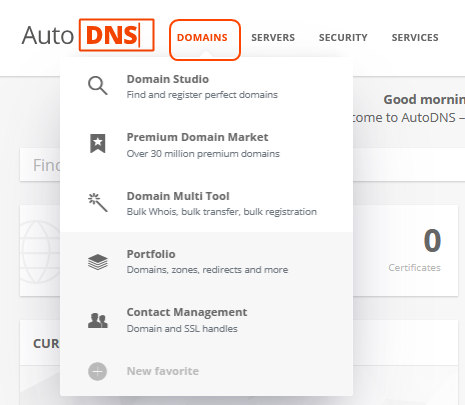
All tools for domain and zone administration can be found in the DOMAINS section
 ## Domain Studio
### Important tasks combined in one tool
The DOMAIN STUDIO of the AutoDNS Domain platform combines central tasks of the X3 version in one tool. The DOMAIN STUDIO thus enables a simplified and fast domain search, domain registration and fast and easy domain transfer. Domains can be registered and transferred in bulk, which is not yet possible in this combination in the x3 version. In addition, DOMAIN STUDIO includes the Premium Market as well as a Pricer, which estimates and indicates the value of a domain if it is higher than the indicated purchase value.
Besides the described combined order types, DOMAIN STUDIO offers a broad, filterable result range: Recommendations based on the searched domain are given, and location results are displayed that match the language / TLD of the entered domain. In addition, you will receive suggestions for similar domains, which may differ from the domain you originally searched for, for example, due to subdomains.
Benefits:
- easy and quick to use
- all basics combined in one tool
- in addition to the exact hit you will receive a large selection of alternative domains (also from the Market Place and Premium Domains)
## Premium market
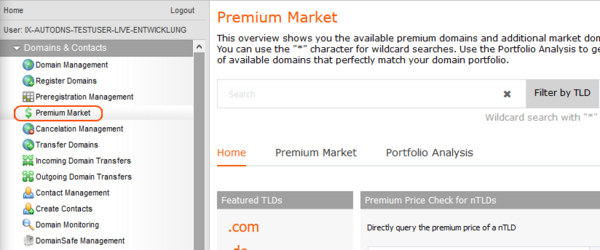
The Premium Market, which displays available premium domains as well as additional market domains, can be found in the AutoDNS X3 interface in the **Premium Market** menuin the menu group **Domains & Contacts**.
## Domain Studio
### Important tasks combined in one tool
The DOMAIN STUDIO of the AutoDNS Domain platform combines central tasks of the X3 version in one tool. The DOMAIN STUDIO thus enables a simplified and fast domain search, domain registration and fast and easy domain transfer. Domains can be registered and transferred in bulk, which is not yet possible in this combination in the x3 version. In addition, DOMAIN STUDIO includes the Premium Market as well as a Pricer, which estimates and indicates the value of a domain if it is higher than the indicated purchase value.
Besides the described combined order types, DOMAIN STUDIO offers a broad, filterable result range: Recommendations based on the searched domain are given, and location results are displayed that match the language / TLD of the entered domain. In addition, you will receive suggestions for similar domains, which may differ from the domain you originally searched for, for example, due to subdomains.
Benefits:
- easy and quick to use
- all basics combined in one tool
- in addition to the exact hit you will receive a large selection of alternative domains (also from the Market Place and Premium Domains)
## Premium market
The Premium Market, which displays available premium domains as well as additional market domains, can be found in the AutoDNS X3 interface in the **Premium Market** menuin the menu group **Domains & Contacts**.
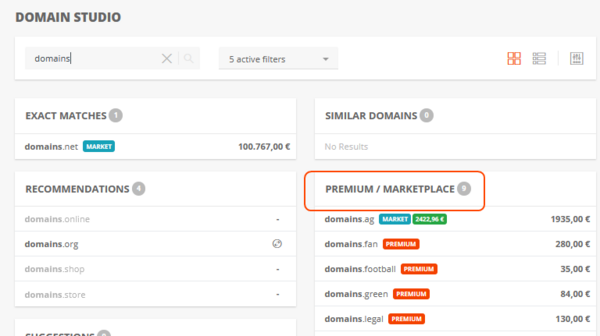
 In the new AutoDNS platform the Premium Market is integrated into the DOMAIN STUDIO.
 ## Pricer
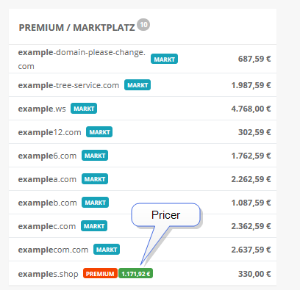
New in the DOMAIN STUDIO is the Pricer, which estimates and indicates the value of a domain if it is higher than the indicated purchase value. You can identify it by the green field.
## Pricer
New in the DOMAIN STUDIO is the Pricer, which estimates and indicates the value of a domain if it is higher than the indicated purchase value. You can identify it by the green field.
 ## Filter options
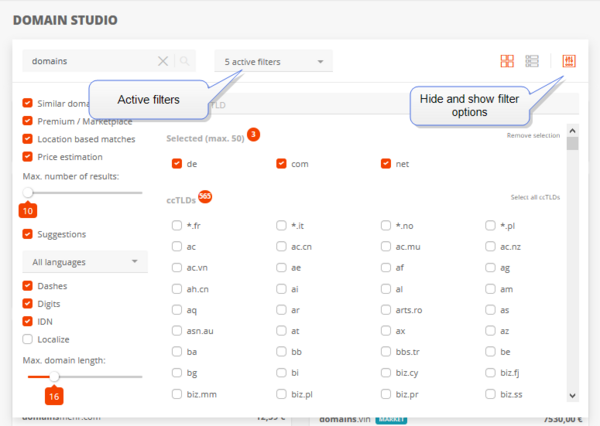
Numerous filter options help you find the right domains quickly.
## Filter options
Numerous filter options help you find the right domains quickly.
 ## Comparison of the most important tasks in X3 and the domain platform
### Register domains
#### AutoDNS X3
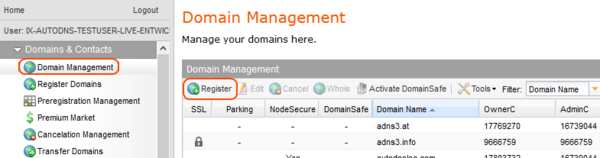
Domain registrations can be made in the menu group **Domains & Contacts** via the menu item **Register Domain** or via the **Domain Management** area button **Register.**
## Comparison of the most important tasks in X3 and the domain platform
### Register domains
#### AutoDNS X3
Domain registrations can be made in the menu group **Domains & Contacts** via the menu item **Register Domain** or via the **Domain Management** area button **Register.**
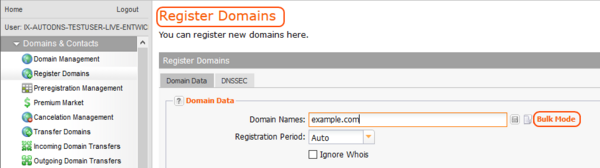
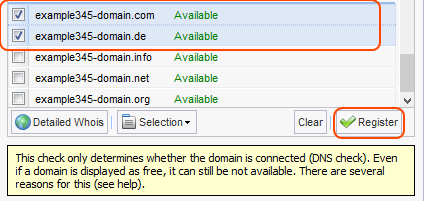
 In the **Register Domains** form you can switch directly to the mass registration via the Mass order link.
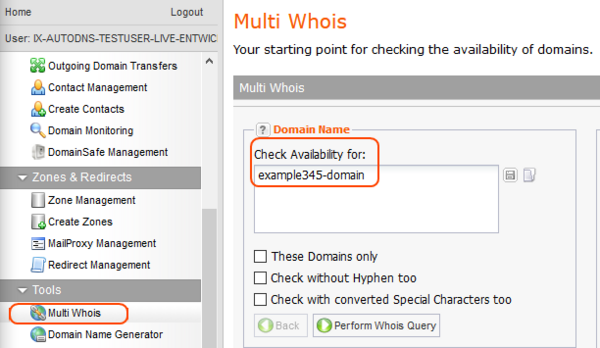
 When registering via the Multi WHOIS, the availability of the domains can be checked in advance.
 Available domains can be selected and the form for domain registration can be opened directly by clicking the **Register** button.
 #### AutoDNS Domain Platform
##### Single registration
The registration process begins with the search for the domain in the DOMAIN STUDIO. Here, in addition to the exact search hit, further domain suggestions are displayed. The availability is always displayed.
#### AutoDNS Domain Platform
##### Single registration
The registration process begins with the search for the domain in the DOMAIN STUDIO. Here, in addition to the exact search hit, further domain suggestions are displayed. The availability is always displayed.
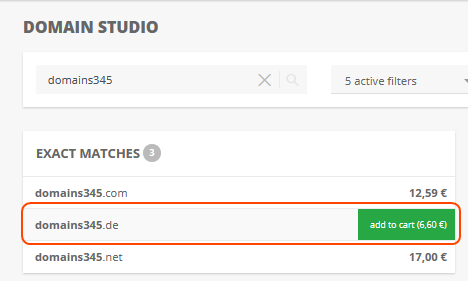
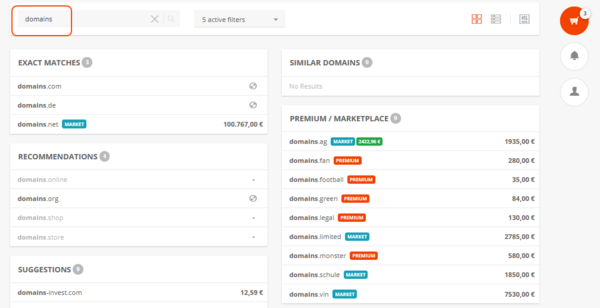 If you click on a domain in one of the lists, it is placed in the SHOPPING CART.
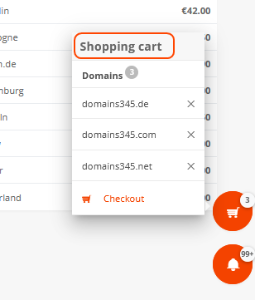
 You can view the SHOPPING CART by clicking the SHOPPING CART icon. The domains can also be deleted here.
 Click on **Checkout** to open the SHOPPING CART page. Here you can enter all the details for the domain registration, set up the zones for the domain if desired and order additional products and services such as BackUpMX or a forwarding.
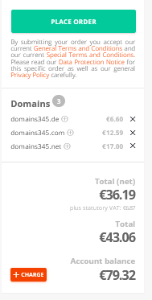
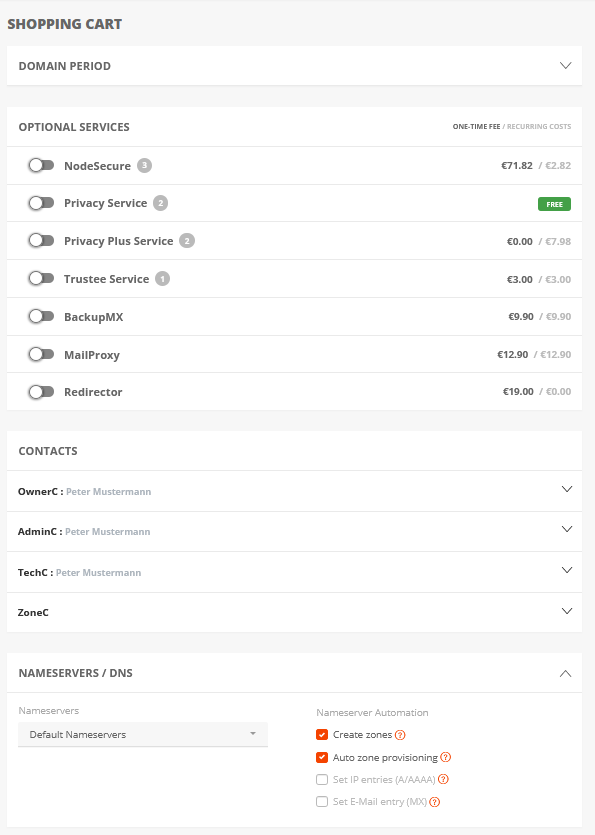 In the order overview you can check and execute your orders.
 ##### Bulk registration
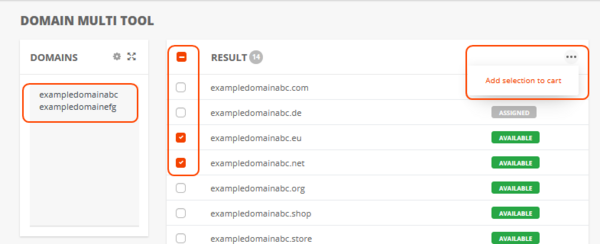
You can perform bulk registrations in the DOMAIN MULTI TOOL. You can insert domain lists or enter the domains manually. All desired domains can be displayed with individual and total prices by clicking on the entry **Add selection to cart** in the more menu in the window **Register Domain**.
You can start the registration process by clicking on **Add to shopping cart**.
##### Bulk registration
You can perform bulk registrations in the DOMAIN MULTI TOOL. You can insert domain lists or enter the domains manually. All desired domains can be displayed with individual and total prices by clicking on the entry **Add selection to cart** in the more menu in the window **Register Domain**.
You can start the registration process by clicking on **Add to shopping cart**.
 ### Edit domain data
#### AutoDNS X3
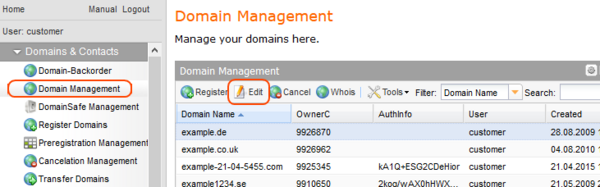
You can select the domain to be edited in the domain management ares. By double-clicking on the domain or the **Edit** button, you can switch to the **Update Domain** form, where you can edit the data.
### Edit domain data
#### AutoDNS X3
You can select the domain to be edited in the domain management ares. By double-clicking on the domain or the **Edit** button, you can switch to the **Update Domain** form, where you can edit the data.
 #### AutoDNS Domain-Plattform
The overview of registered domains is displayed in the PORTFOLIO. Here the desired domain can be clicked on and then edited in the single view.
#### AutoDNS Domain-Plattform
The overview of registered domains is displayed in the PORTFOLIO. Here the desired domain can be clicked on and then edited in the single view.
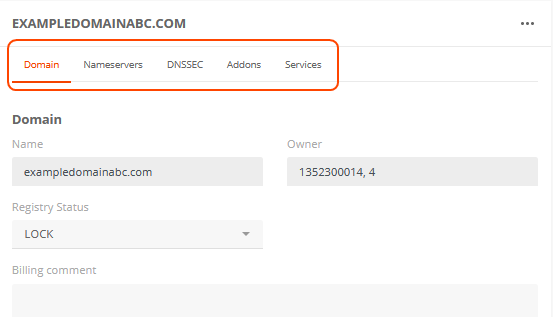
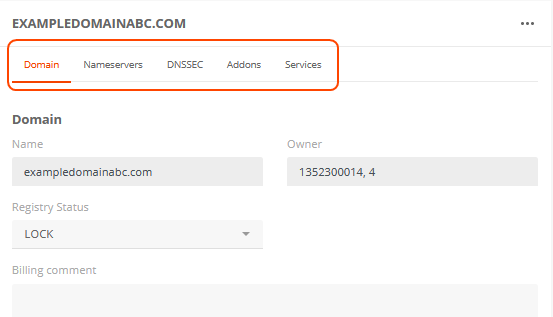 In addition to the domain data, name servers and DNSSEC, additional products and domain services can also be activated here, with a direct link to the SHOPPING CART page.
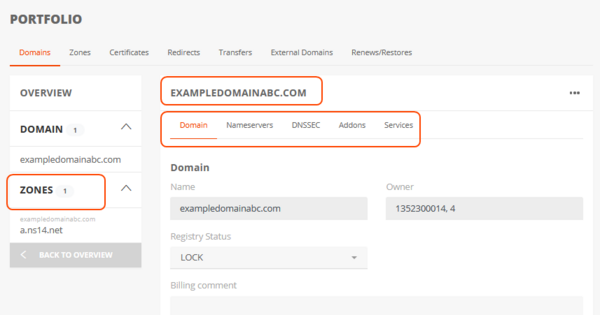
 In the domain list in the PORTFOLIO it is also possible to access the domain zone directly to make changes there. Click on the domain to switch to the corresponding form.
 Benefits:
- Changes can be made to the name servers
- Addons and services can be booked for this purpose
Benefits:
- Changes can be made to the name servers
- Addons and services can be booked for this purpose
 ### Create new zone
#### AutoDNS X3
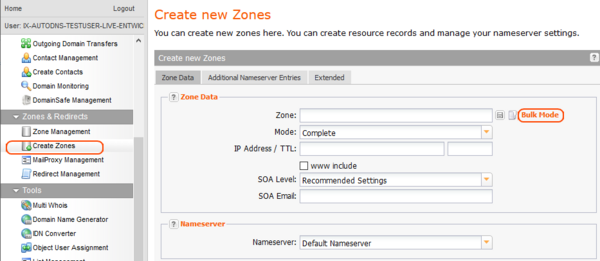
In the menu item **Zones & Redirects** new zones can be added via the menu item **Create zones**. By clicking on the link **Bulk Order** a bulk order can be started. Zone data, name server resource records and additional name server entries can be entered here.
#### AutoDNS Domain Platform
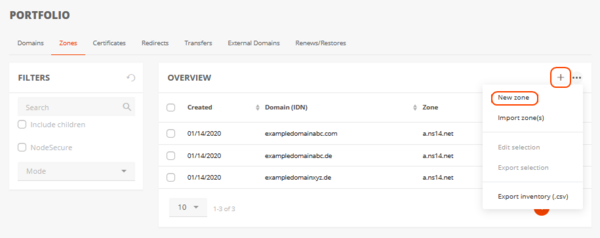
You can create new zones in the PORTFOLIO in the **Zones** tab. Clicking on the **+** or the entry **New Zone** in the **More** menu opens the form for a new zone.
### Create new zone
#### AutoDNS X3
In the menu item **Zones & Redirects** new zones can be added via the menu item **Create zones**. By clicking on the link **Bulk Order** a bulk order can be started. Zone data, name server resource records and additional name server entries can be entered here.
#### AutoDNS Domain Platform
You can create new zones in the PORTFOLIO in the **Zones** tab. Clicking on the **+** or the entry **New Zone** in the **More** menu opens the form for a new zone.
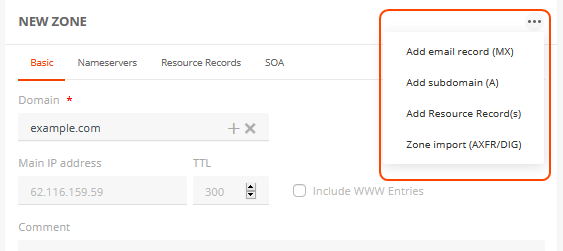
 In the form **New Zone** you can enter the general zone data, make name server settings and SOA settings and create resource records.
Using the **More** menu, you can quickly switch to the forms for new email records, new subdomains, additional resource records and zone import.
In the form **New Zone** you can enter the general zone data, make name server settings and SOA settings and create resource records.
Using the **More** menu, you can quickly switch to the forms for new email records, new subdomains, additional resource records and zone import.
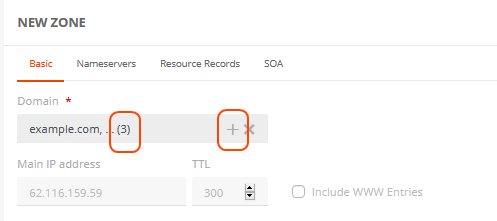
 You can also start bulk orders here. Under **General**, click on the **+** next to the domain name to create additional domains for which the new zone is to apply.
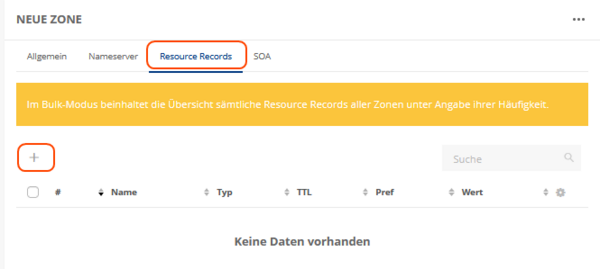
 You can also change resource records here in the bulk request. The number of zones affected by the change is always displayed so that the resource records are not applied to all existing zones.
 Benefits:
- In the selected zone, the corresponding domain is always displayed with redirects, certificate, etc.
- Zone-related changes of the resource records possible
Benefits:
- In the selected zone, the corresponding domain is always displayed with redirects, certificate, etc.
- Zone-related changes of the resource records possible
 ### Edit zones
#### AutoDNS X3
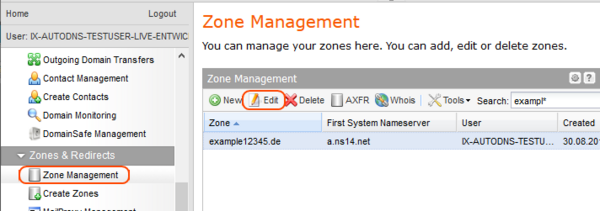
All zones are listed in the zone overview (**Zone Management** → menu item **Zones & Redirects**). For editing, the zone is selected and the form is opened by clicking on **Edit**.
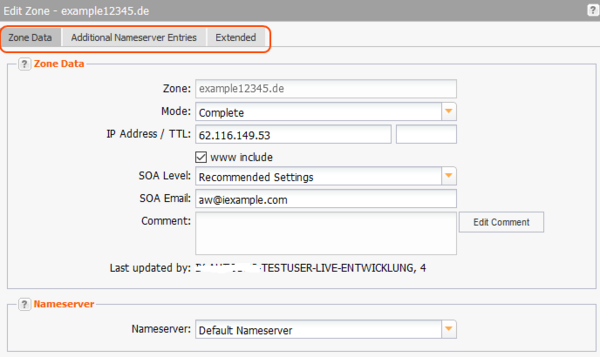
The zone data and SOA entries can be changed, additional name server entries and an IP for AFR can be set and free text entries can be made.
### Edit zones
#### AutoDNS X3
All zones are listed in the zone overview (**Zone Management** → menu item **Zones & Redirects**). For editing, the zone is selected and the form is opened by clicking on **Edit**.
The zone data and SOA entries can be changed, additional name server entries and an IP for AFR can be set and free text entries can be made.
 Identical changes to multiple zones can be made quickly using the **Zone Update Wizard.** (**Zone administration → Menu Tools → Zone Update Wizard**).
#### AutoDNS Domain Platform
The overview of the zones can be found in the PORTFOLIO on the **Zones** tab.
Identical changes to multiple zones can be made quickly using the **Zone Update Wizard.** (**Zone administration → Menu Tools → Zone Update Wizard**).
#### AutoDNS Domain Platform
The overview of the zones can be found in the PORTFOLIO on the **Zones** tab.
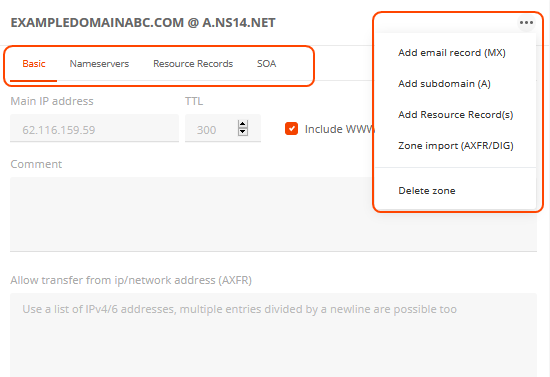
 Here zones can be processed individually or in bulk order. If you click on a zone in the overview, the editing form opens. Changes can be made in the **Basic**, **Name Servers,** **Resource Records** and **SOA** tabs or via the entries in the **More** menu, **Add email record (MX)**, **Add subdomain (A)**, **Add Resource Record(s)** and **Zone import (AXFR/DIG)**.
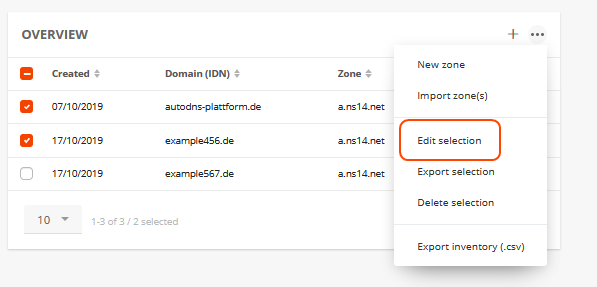
 If you select several zones in the overview, you can open the form for the bulk order via the entry **Edit selection** in the **More** menu. In addition to the same editing options as for individual zones, the **Zone Update Wizard** is also available here for changing the same zone data in several zones.
 Benefits:
- In the selected zone, the corresponding domain is always displayed with redirects, certificate, etc.
- Zone-related modification of resource records possible
- Bulk zone orders possible
Benefits:
- In the selected zone, the corresponding domain is always displayed with redirects, certificate, etc.
- Zone-related modification of resource records possible
- Bulk zone orders possible
 ### Domain transfer
#### AutoDNS X3
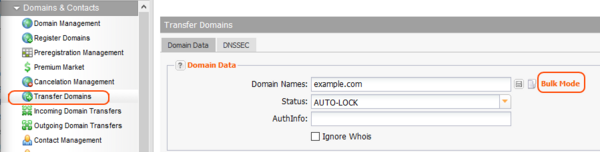
The form for the domain transfer can be opened via the menu item **Transfer Domain** in the menu group **Domains & Contacts**. Here, single and bulk orders can be started.
Domain transfers can also be started from the **Incoming Domain Transfers** overview.
#### AutoDNS Domain Platform
A transfer can be done in three different ways, in the DOMAIN STUDIO, with the DOMAIN MULTI TOOLS and via the PORTFOLIO.
##### DOMAIN STUDIO
Find the domain you want to transfer in DOMAIN STUDIO and click on it. This will add it to your SHOPPING CART.
### Domain transfer
#### AutoDNS X3
The form for the domain transfer can be opened via the menu item **Transfer Domain** in the menu group **Domains & Contacts**. Here, single and bulk orders can be started.
Domain transfers can also be started from the **Incoming Domain Transfers** overview.
#### AutoDNS Domain Platform
A transfer can be done in three different ways, in the DOMAIN STUDIO, with the DOMAIN MULTI TOOLS and via the PORTFOLIO.
##### DOMAIN STUDIO
Find the domain you want to transfer in DOMAIN STUDIO and click on it. This will add it to your SHOPPING CART.
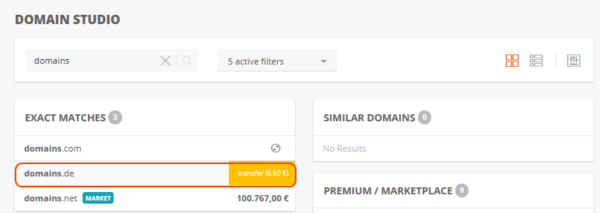 If you click on **Checkout** in the SHOPPING CART you will be taken to the SHOPPING CART page. Here you can enter the AuthInfos for the domains.
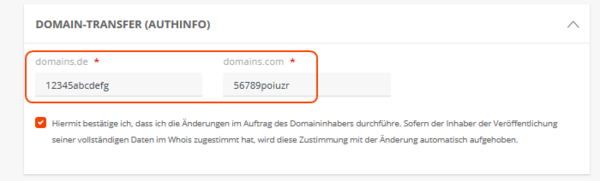 In addition to optional services, you can also store the contacts here and enter the name servers with the desired settings.
##### DOMAIN MULTI TOOL (bulk transfer)
You can enter the domains you want to transfer as a bulk order as a comma-separated list or manually in the **Domain** area of the DOMAIN MULTI TOOL Then select the domains and click on the **Add selection to cart** menu item in the **More** menu.
In addition to optional services, you can also store the contacts here and enter the name servers with the desired settings.
##### DOMAIN MULTI TOOL (bulk transfer)
You can enter the domains you want to transfer as a bulk order as a comma-separated list or manually in the **Domain** area of the DOMAIN MULTI TOOL Then select the domains and click on the **Add selection to cart** menu item in the **More** menu.
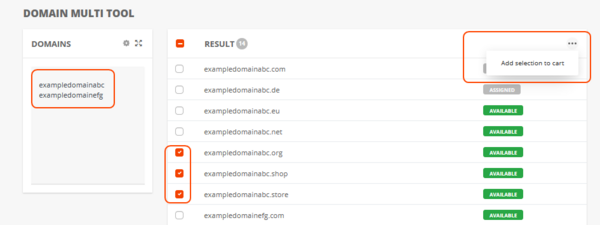 Click on the ADD TO CART button to open the SHOPPING CART page, where you can enter all the data required for the transfer. In addition to optional services, you can also store the domain contacts and enter the name servers with the desired settings. Complete the transfer by clicking on the button ORDER NOW.
##### PORTFOLIO
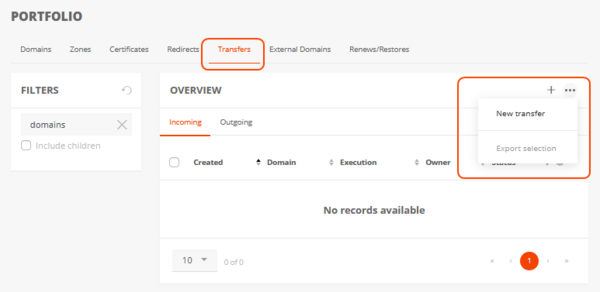
In the PORTFOLIO you can start transfers in the **Transfer** tab. Here you are redirected to the **Multi-WHOIS-Tool**.
Click on the ADD TO CART button to open the SHOPPING CART page, where you can enter all the data required for the transfer. In addition to optional services, you can also store the domain contacts and enter the name servers with the desired settings. Complete the transfer by clicking on the button ORDER NOW.
##### PORTFOLIO
In the PORTFOLIO you can start transfers in the **Transfer** tab. Here you are redirected to the **Multi-WHOIS-Tool**.
 The further procedure of the transfer is the same as described above under "Bulk transfer with the DOMAIN MULTI TOOL".
Benefits :
- Transfers can be started flexibly at different points
- Transfers run through the SHOPPING CART and therefore there is a high degree of transparence
## Optional services
### AutoDNS X3
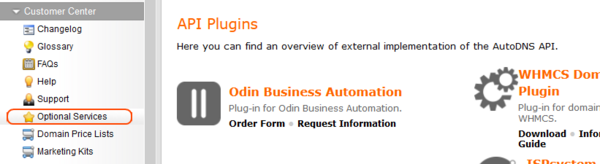
In X3, the **Additional services and products** in the **Customer Center** under **Optional Services** are divided into four areas for Domains, Name servers and Servers and API plugins (shown in the screenshot).
The further procedure of the transfer is the same as described above under "Bulk transfer with the DOMAIN MULTI TOOL".
Benefits :
- Transfers can be started flexibly at different points
- Transfers run through the SHOPPING CART and therefore there is a high degree of transparence
## Optional services
### AutoDNS X3
In X3, the **Additional services and products** in the **Customer Center** under **Optional Services** are divided into four areas for Domains, Name servers and Servers and API plugins (shown in the screenshot).
 #### AutoDNS Domain Platform
In the platform there are several ways to book optional products and services.
##### Booking in the Products & Services section
In the **Products & Services** section under the **Services** menu item, three tabs display **Products**, **Services** (= API services) and **Packages**.
#### AutoDNS Domain Platform
In the platform there are several ways to book optional products and services.
##### Booking in the Products & Services section
In the **Products & Services** section under the **Services** menu item, three tabs display **Products**, **Services** (= API services) and **Packages**.
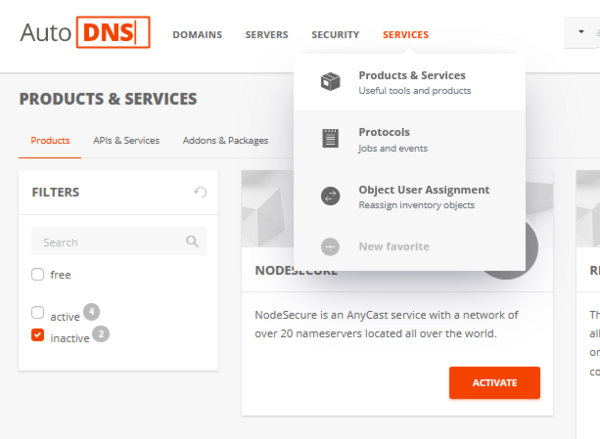 It can be filtered here for active and inactive products.
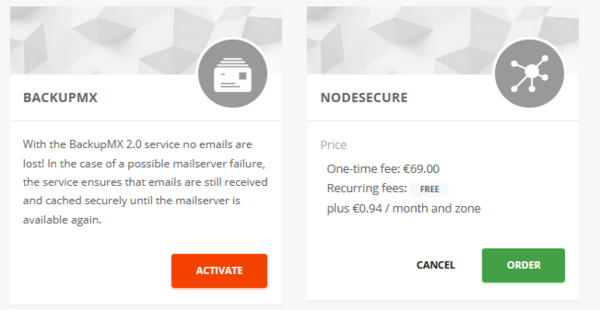
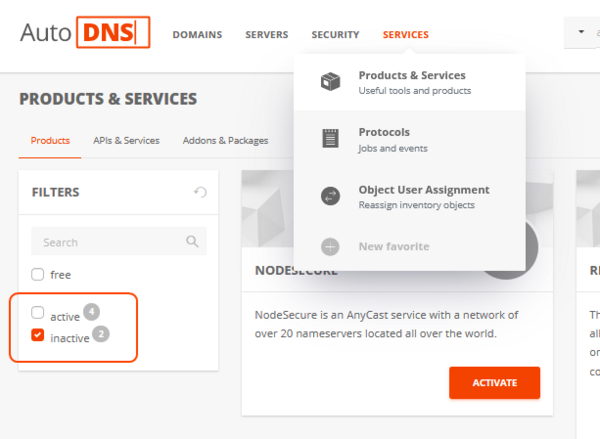 For inactive products, details can be viewed by clicking on the ACTIVATE button and the service can then be ordered directly. By clicking on ORDER, the product is placed in the shopping cart.
 ##### Booking on the SHOPPING CART page
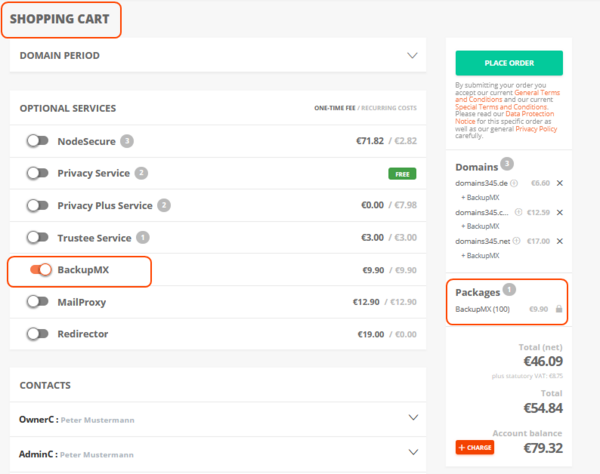
On the SHOPPING CART page, only products and services can be booked directly in the ordering process. Thereby one-time and follow-up costs are displayed.
Please note that optional products and services can only be booked on the SHOPPING CART page if there is a domain in the SHOPPING CART.
##### Booking on the SHOPPING CART page
On the SHOPPING CART page, only products and services can be booked directly in the ordering process. Thereby one-time and follow-up costs are displayed.
Please note that optional products and services can only be booked on the SHOPPING CART page if there is a domain in the SHOPPING CART.
 ##### Booking via the PORTFOLIO
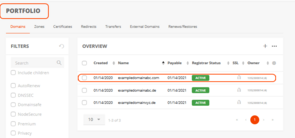
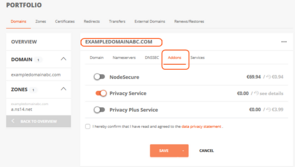
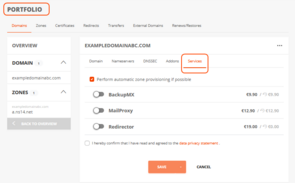
For already registered domains, additional products can be booked via the PORTFOLIO. Addons and services can be added here.
##### Booking via the PORTFOLIO
For already registered domains, additional products can be booked via the PORTFOLIO. Addons and services can be added here.
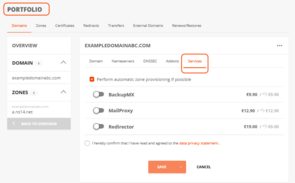 In the **Addons** and **Services** tabs, services can be added for the selected domain.
 The booked products are placed in the SHOPPING CART by clicking on **In the cart**.