---
title: "ISAC - ACTION menu"
url: "https://help.internetx.com/en/server/isac-menu-action/"
lang: "en"
section: "Server & Cloud"
---
# ISAC - ACTION menu
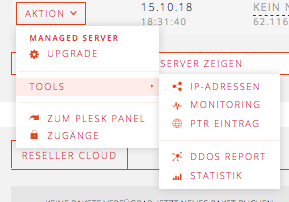 To manage the servers you will find useful options in the ACTION menu.
By clicking on ACTION next to the respective server overview (DASHBOARD / MY SERVER) the ACTION menu opens. Depending on the booked package, the overview may differ.
- TOOLS: IP addresses, monitoring, PTR entry, DDoS report, statistics
- TO PLESK PANEL: Link to the Plesk Administration Interface (IP:8443)
- ACCESSES: Login name and password to SSH, Plesk, FTP, iDRAC etc.
## Managed servers
There are additional fields in the managed service menu, e.g. UPGRADE. Some fields are hidden. For e.g. restart please contact the support team.
## Unmanaged servers
To manage the servers you will find useful options in the ACTION menu.
By clicking on ACTION next to the respective server overview (DASHBOARD / MY SERVER) the ACTION menu opens. Depending on the booked package, the overview may differ.
- TOOLS: IP addresses, monitoring, PTR entry, DDoS report, statistics
- TO PLESK PANEL: Link to the Plesk Administration Interface (IP:8443)
- ACCESSES: Login name and password to SSH, Plesk, FTP, iDRAC etc.
## Managed servers
There are additional fields in the managed service menu, e.g. UPGRADE. Some fields are hidden. For e.g. restart please contact the support team.
## Unmanaged servers
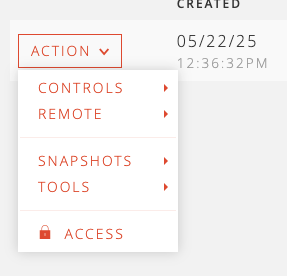 CONTROL: Customize (Cloud Server), start, stop, reboot, reinstall, mount ISO (only if operating system is ISO)
REMOTE: SSH or VNC console opens in a separate window. The access data for SSH can be found under "Accesses" (port 2222).
DESKTOP: Creating and restoring snapshots
## Individual server and projects
CONTROL: Customize (Cloud Server), start, stop, reboot, reinstall, mount ISO (only if operating system is ISO)
REMOTE: SSH or VNC console opens in a separate window. The access data for SSH can be found under "Accesses" (port 2222).
DESKTOP: Creating and restoring snapshots
## Individual server and projects
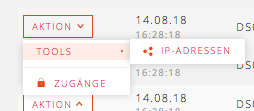 An overview of the dedicated servers can be found under CLOUD & SERVER / PROJECTS / MY SERVER.
TOOLS: In the list of IP addresses you can see the respective traffic statistics
ACCESSES: Login name and password to iDRAC etc. The link opens by clicking on the displayed IP address.
An overview of the dedicated servers can be found under CLOUD & SERVER / PROJECTS / MY SERVER.
TOOLS: In the list of IP addresses you can see the respective traffic statistics
ACCESSES: Login name and password to iDRAC etc. The link opens by clicking on the displayed IP address.