

- Home
- TLS/SSL & S/MIME
- Importing certificates from SSL Manager to AutoDNS
Importing certificates from SSL Manager to AutoDNS
You can import the certificates you manage in the SSL Manager (context 9) into AutoDNS quickly and easily. Both the certificates and the TLS/SSL contacts are imported. You can perform the import process as often as you want, regardless of whether you manage already imported certificates or not.
How to run the import?
- Log into the AutoDNS interface.
- Switch to the Certificates area (SECURITY / Certificates).
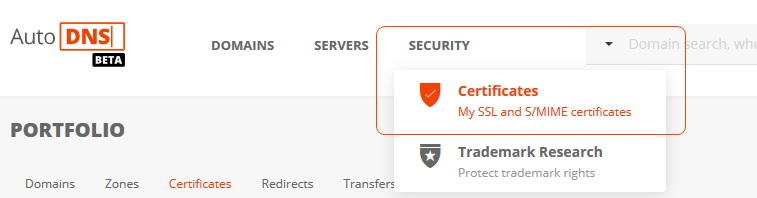
- To open the Import Certificates window, click Import Certificates in the More menu or the Import Certificates link at the bottom of the overview. The latter option only works if no certificates are managed in AutoDNS yet.
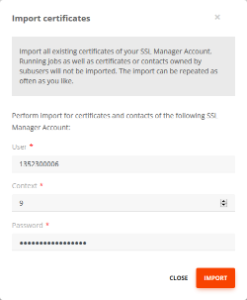
- Enter your SSL Manager username, context and password.
- Click Import to start the import process.
All certificates available in the SSL Manager are imported. Current jobs and certificates and contacts of subusers are not imported.
When the import process is complete, the imported certificates are displayed in the certificate overview and the TLS/SSL contacts in the contact management area.
Was this article helpful?
Thanks for the feedback.