

- Home
- TLS/SSL & S/MIME
- Installing S/MIME certificates in Thunderbird
Installing S/MIME certificates in Thunderbird
Mozilla Thunderbird has its own certificate management, regardless of whether Windows, Linux or Mac OS is used as operating system. The certificate management in Thunderbird works with files in PKCS12 format (.p12). The .p12 file contains all important certificates, like the S/MIME certificate itself, all certificates from the certificate chain and the Private Key belonging to the certificate. For installation, certificates must be available as .p12 files. If the certificate is in PKCS7 format (.p7b), a p.12 file must be converted first.
Creating .p12 file from .p7b file
For the creation of the .p12 file is required:
-
Private Key that matches the CSR used in the order
-
The S/MIME certificate stored in a .p7b file
-
OpenSSL
-
Outreading certificates from the .pb7
penssl pkcs7 -print_certs -in certificate.p7b -out certificate.cer
- Repackaging certificates and private keys
- The now individually available certificates are repackaged together with the private key as .p12 file. The file is additionally secured with a password which can be chosen freely.
openssl pkcs12 -export -in certificate.cer -inkey privateKey.key -out certificate.p12
The created file (here certificate.p12) can now be used for the installation.
In order to use the certificate, it must first be stored in the certificate management of Thunderbird
- In Thunderbird, go to the Account Settings (Tools menu) and select the email account for which the S/MIME certificate should be used.
- Select the Security entry below the email address.
- Click on Manage Certificates. The Certificate Manager opens.
- Switch to the tab Your Certificates
- Click on the Import button. The file selection opens.
- Select the corresponding .p12 file.
- Select Certificate for Digital Signing and Encryption
- For Digital Signing, select the certificate with which the email is to be signed.
- Select the certificate in the Encryption section to encrypt outgoing emails.
Signing and encrypting email
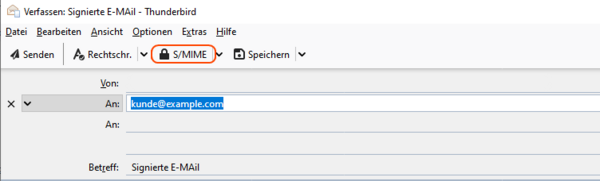
If you want all outgoing emails to be signed automatically, activate the checkbox “Digitally sign messages (as default)” in the S/MIME Security window under Digital Signature (see above).
If emails should not be automatically signed and encrypted, this can be set for individual emails in the email form. The setting can be found under the drop-down menu Security.
Was this article helpful?
Thanks for the feedback.