

- Home
- Server & Cloud
- ISAC - user interface
ISAC - user interface
For an initial overview of how the ISAC portal is structured and where further functions can be found.
Menu bar

New

Create new servers or instances.
Administration

- Settings: Changing contact and billing data and adapting the ISAC interface to your corporate identity
- Orders: History of orders placed via ISAC
- Bills: Overview of your server and domain invoices
- History: Log of the last actions
- Access: Connect to/disconnect from your AutoDNS account, activate 2-factor authentication, reset password
Help

- API documentation: Link to the detailed ISAC API documentation https://doc.isac.de/
- FAQ: Technical and organizational questions about the server products
- Support: Open a support case to our server support team
- Status: Announcements of maintenance analog https://status.internetx.com/
API access data (APP KEY & DEVELOPER KEY) can be obtained from our support.
Search

Global search in your ISAC account.
Navigation bar
The navigation bar is located on the left side of the ISAC account. For an overview the subitems are folded in.
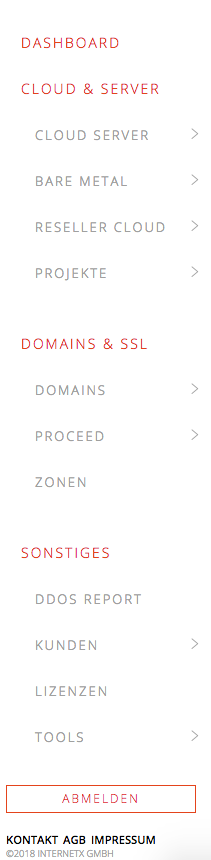
Dashboard
The start page for your quick overview of your cloud products. In the Actions menu you will find, among other things, the access data for the respective server and, if applicable, the link to the Plesk administration interface
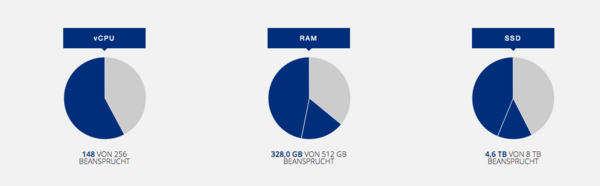
When using the Reseller Cloud, the used and free resources can be seen at a glance.
Cloud & Server
Ordering and administration of the standard products Cloud Server, Bare Metal Server and Reseller Cloud directly under the respective sub-items.
Individual servers can be ordered through our sales department - just contact us via sales@internetx.com.
Under PROJECTS you will also find
- MY SERVERS: all your servers (also individual projects) with access data and the internal identification number as it appears on the invoice
- STATISTICS: Traffic (incoming + outgoing) per IP address in the daily statistics
- HOUSING: Power consumption for booked racks in daily statistics
Domains & SSL
Domains
Order domains directly via “new entry” and manage existing domains, which are clearly displayed with name server and expiration date.
In the action menu you can directly order for the selected domain
- Consult the Whois data
- Edit the zone
PROCEED
Order and management of the SSL offloading service
Further details can be found in the FAQs.
New entry
With a few clicks the SSL certificate is added to your domain, implemented and automatically renewed (Renew). With the additional modules you increase performance and security.
To simplify administration, you can enter several domains and subdomains at once and the drop-down menu shows you which domains are managed by InterNetX or the linked ISAC account.
With the templates useful presets are already selected.
My entries
Overview of active and inactive PROCEED entries with validity and activated modules:
In the action menu you find per domain:
- Details: Forwardings to other URLs and to http, as well as detected applications
- Edit entry: Activating additional modules and changes
- Empty cache: Manual refresh of the cache
- Display certificate files: View the CSR key of the SSL Certificate (after activation via support team; alternatively, you can also view it in SSL Manager)
- Deactivate: If you no longer wish to use the domain through PROCEED. We would be pleased to receive feedback to further develop the product.
If a domain is deleted or moved, PROCEED must be deactivated separately.
Statistics
Clear presentation of orders for the domains PROCEED is active for.
The statistics are ideal for the evaluation of campaigns, for success control and error analysis.
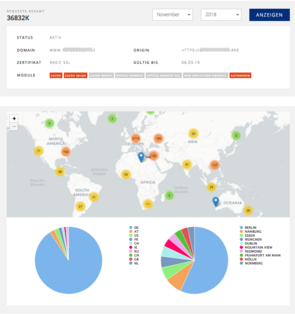
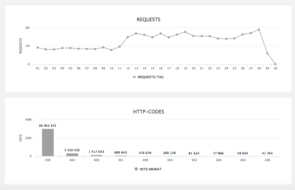
In the action menu you will find a graphical representation of the requests for the selected domain:
- In the monthly summary in the geo-distribution as interactive map and diagram
- By http codes
- To the day
Zones
An overview of your zones with name servers and the activity status of DomainSafe
In the Actions menu you can directly
- Activate PROCEED
- Edit the zone data, e.g. change the TTL and MX records
Miscellaneous
DDoS report
Statistics of DDoS events by traffic and packets per second for the last 30 days or last week
Customers
Access for your customers to view their servers or instances
Licenses
Overview of Plesk and LiveConfig licenses
Licenses no longer in use can be cancelled here in the Actions menu
Tools
- DNS & more: Quick query for typical command line commands, like “ping”, “whois
- Firewall: Implementation of firewall rules and setup of port forwarding
- System Status: Status and utilization of the Reseller Cloud and status of which ports the respective IP addresses can be reached.
Service PIN
Your Service PIN will appear for a few seconds when you click on the button at the bottom of the navigation bar.
The Service PIN is required for telephone inquiries and should be changed regularly (especially when employees change). It can be regenerated in ISAC under Settings or in AutoDNS or SSL Manager.
Was this article helpful?
Thanks for the feedback.