

AutoDNS price management
Price management allows resellers to create and assign price lists with individual prices for domains and certificates. The prices can be generated with percentage and absolute markups on purchase prices and the list can then be assigned to specific customers. The configured lists can be limited to specified durations and therefore be used for promos, as an example.
Price management is part of the AutoDNS Pro feature set and is therefore not chargeable, but an AutoDNS Pro account is required. It is activated in the AutoDNS Pro Control Center and can be deactivated at any time. Please note that AutoDNS Pro is currently only available with a postpayment account.
Activating price management and creating the default price list
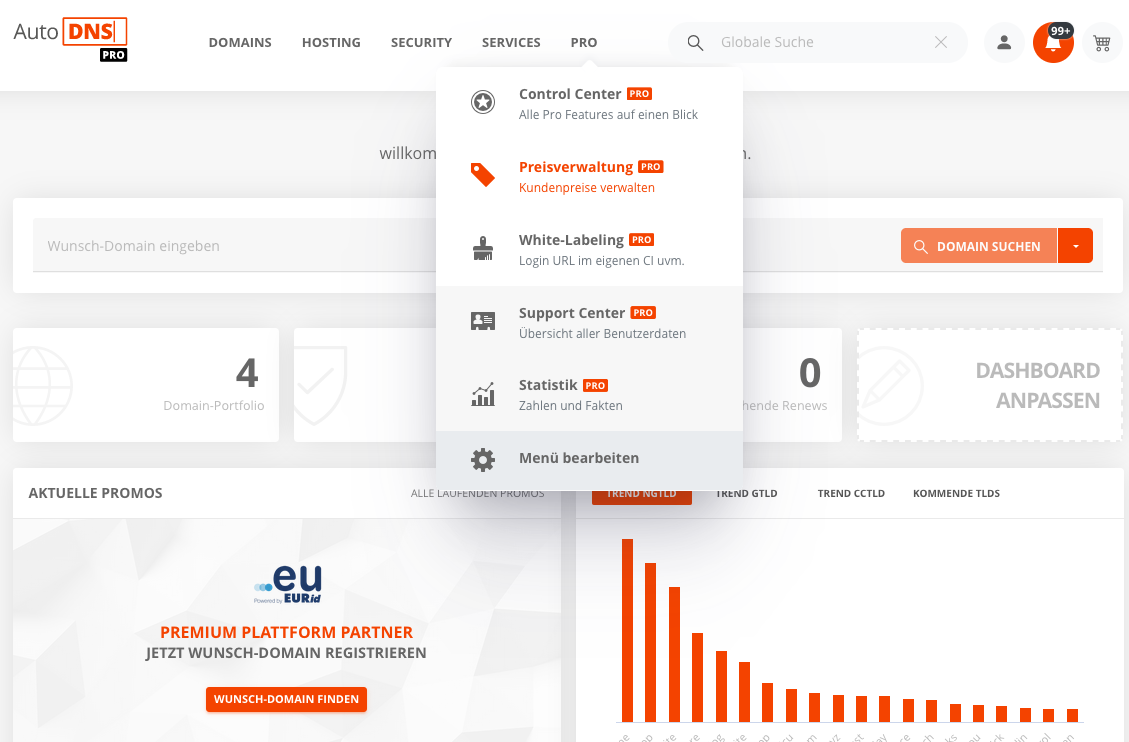
The activation is started from the PRO area.
Starting activation: PRO area → Price Management. Follow the wizards instructions.
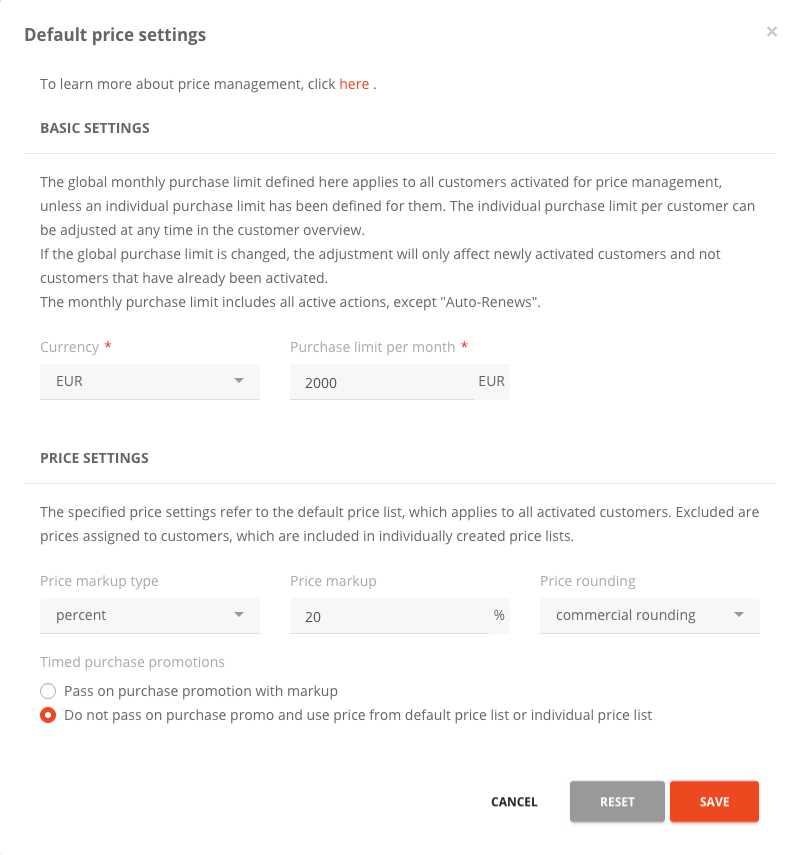
Basic and price settings
Subsequently, information on basic settings (country, currency and purchase limit) as well as price settings (price markup and the type of rounding) must be entered.
When activating price management, the default price list is generated at the same time, for which the settings made during the activation process apply. It is the basis for all other individual price lists. These settings can be changed at any time. This may take a few minutes. For limited promotions, it is possible to choose whether the prices are passed on to the customer with a surcharge or whether the standard prices are retained.
Rounding for prices
Different rounding models are available for the prices. Here is an example for two different values:
Example values: 18.348 / 18.673
- commercial rounding → 18.35 /18.67
- to one decimal place → 18.30 / 18.70
- to whole numbers → 18.00 / 19.00
- to 9 at second decimal place → 18.39 / 18.69
- to 99 after the decimal point → 17.99 / 18.99
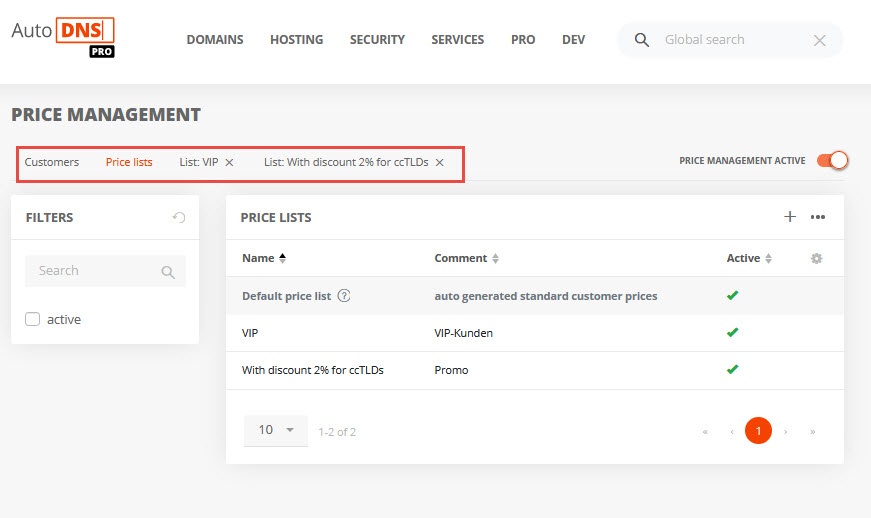
Separate tabs for customers and price list
In the Price management area, the customers and the existing price lists are now displayed in separate tabs. A separate tab is even displayed for each price list that is being edited.
Purchase limit
The monthly purchase limit of the standard price list refers to all customers activated for price management, unless an individual monthly limit has been specified for them. It can be adjusted at any time in the customer overview in the More menu. Changes to the limit only apply to new customers and not to those already activated. The monthly purchase limit includes all active promotions, except auto-renew.
Deactivating price management
Price management can be deactivated at any time via the button on the right above the overview. Deactivation will delete all existing price lists.
The price lists
The Price lists tab contains an overview of all created price lists, including the default price list that was generated at the beginning. This and all other price lists can be viewed and edited here at any time.
In the price lists and the masks for the definition of the individual prices, the purchase prices for each product are always displayed to simplify calculation. The price lists can be exported as well.
Displaying the default price list
The default price list is always the first displayed price list tab in the price lists overview. It contains all domain and certificate prices. This price list applies to all customers unless other individual price lists are created and assigned to customers. It is also the source list for creating group prices.
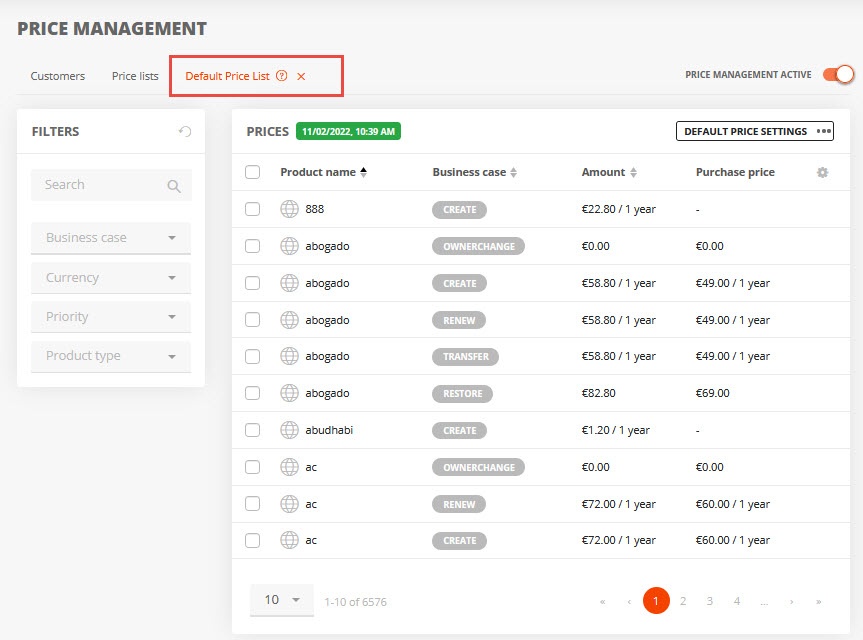
For a better overview, the list of displayed products can be reduced with the Filter. Filtering can be done by business case, priority, product type and currency. For individual price lists, it is also possible to filter by negative margins and group price items.
Editing the default price list
The Default price settings button can be used to make adjustments to the standard price list at any time. The new settings will be applied to all customers for whom the standard price list applies.
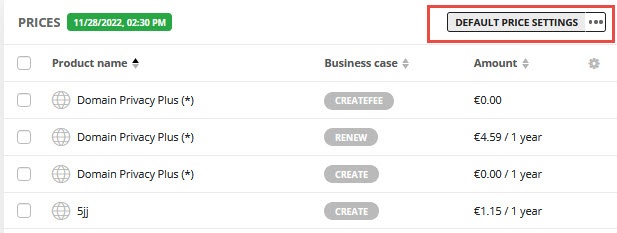
Displaying individual price lists
In the Price management area, under the tab Price lists, all individually configured price lists are displayed.
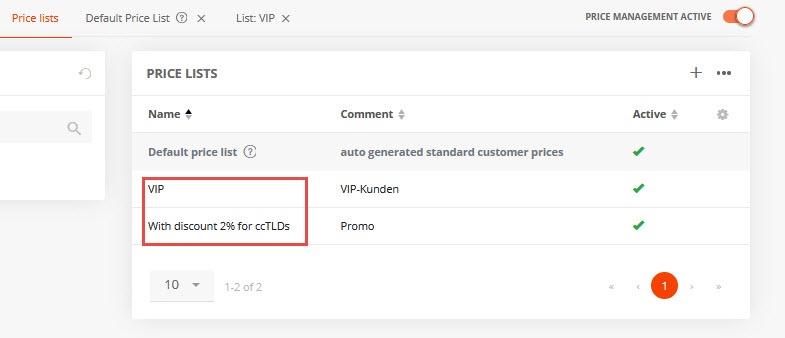
Clicking on these will open them in a separate tab.
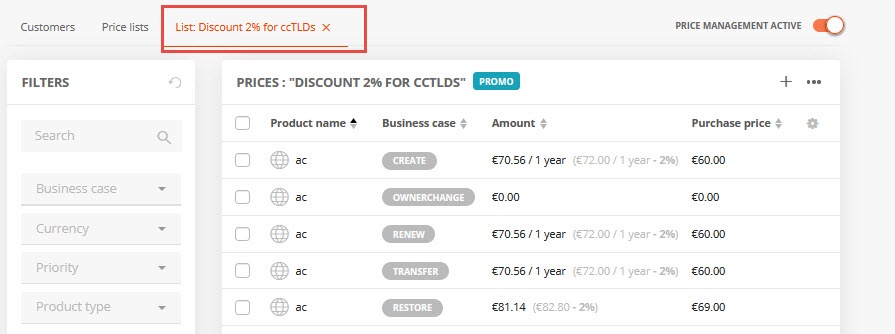
Creating an individual price list
- Click the Price list tab.
- Click the + icon for a new price list.
- Enter the name of the list and the runtime if you want, e.g. for promos.
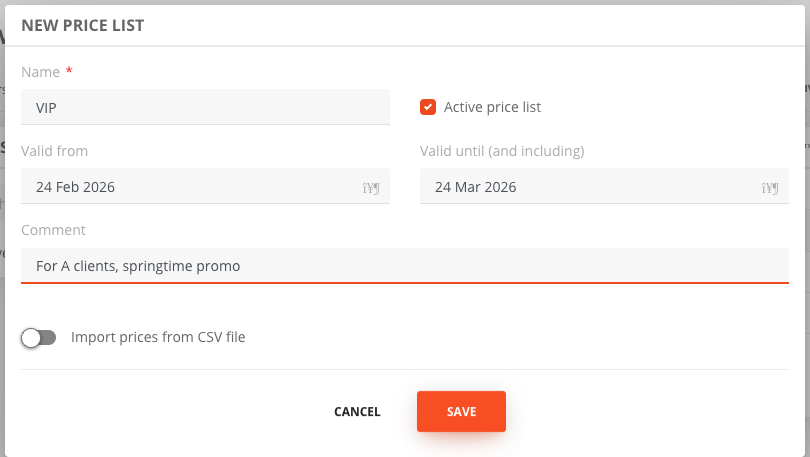
- Create prices in the price list. For each entry, you must enter the details for the Product, the Action and the Price.
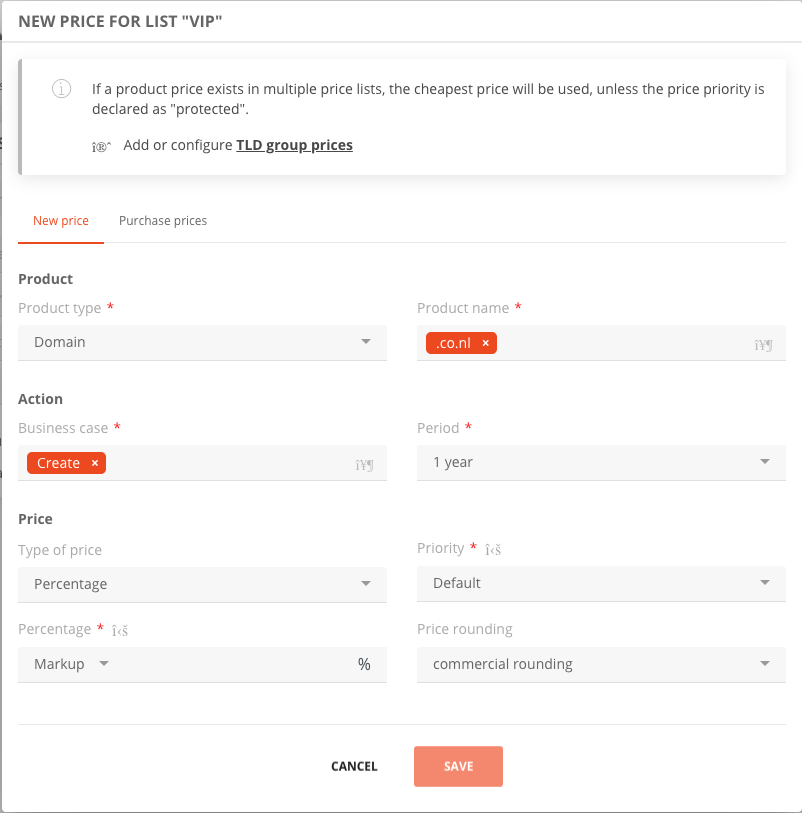
Another way is, to import a .csv file in the New Price List window
If the purchase price is undercut, a notice is displayed, which can also be seen in the Purchase Price tab.
If default is selected for priority, the lowest price is always used for products that are included in several price lists. If protected is selected, this price will always be used. In case of multiple protected prices, the highest one always applies.
Group prices for all TLDs of a TLD product group, i.e. ccTLDs, gTLDs or nGTLDs, can be added to individual price lists.
The created price list is displayed in the Price lists tab. By clicking on an individual list, it will be displayed in a separate tab and can be edited there.
Editing individual price lists
- In the Price management area go to the Price lists tab.
- Select the entry Price list settings from the More menu for the desired list.
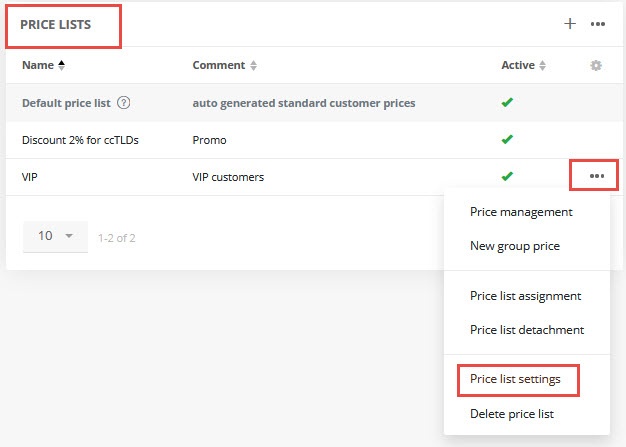
Deleting individual price lists
Deleting a price list deletes it from the price management and also from the customers to whom it was assigned.
- In the Price management area go to the Price lists tab.
- Select the Delete price list entry from the More menu for the desired list.
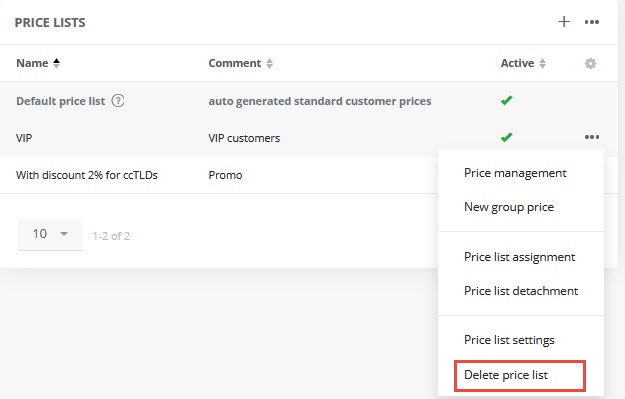
Assigning price lists
A price list can be assigned to one, several, or all customers. Multiple price lists can also be assigned to a single customer.
If the price for the same product is included in several of these lists, the lowest price always applies—unless a price has been defined as Protected, in which case that price takes precedence. If a product price has been defined as Protected in multiple price lists, the highest protected price applies.
Price list assignment is possible only for customers who have been activated for price management.
There are three ways to assign price lists to customers in the Price Management area
Assigning price lists in the Price list tab
- Select the Price list tab.
- In the More menu of the desired tab select Price list assignement.
- Select the desired customers under Customer or activate the Select for all customers checkbox.
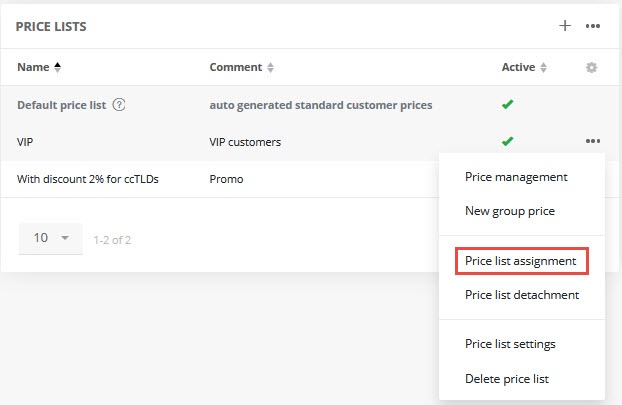
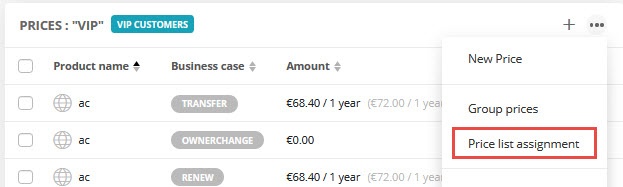
Assigning price lists in the individual price list tab
- In price management, select the tab of an individual price list.
- In the window’s More menu, click the Price list assignment entry.
- Select the desired customers under Customer or activate the Select for all customers checkbox.
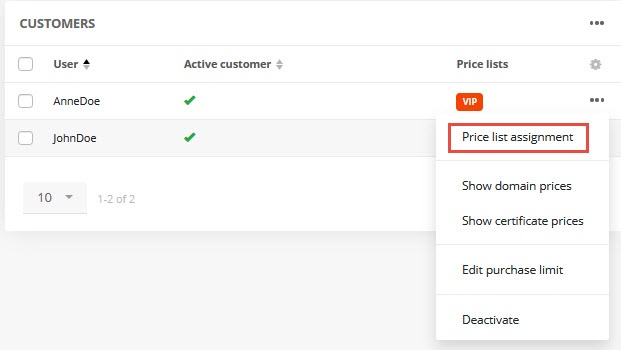
Assigning price lists in the Customers tab
- In Price management area, select the Customers tab.
- In the More menu of the desired customer, click the Price list assignment entry.
- Select the desired customers under Customers or activate the Select for all customers checkbox.
Removing price list assignment
With this action only the assignment of a list to a customer is removed. The list itself is not deleted. It can be reassigned to the customer at any time.
Remove the assignment in the Customers tab
- Select the Customers tab in the Price management area
- Select individual customers or click the checkbox next to the User column header to select all customers.
- In the More menu, click Price List Assignment to open the respective window.
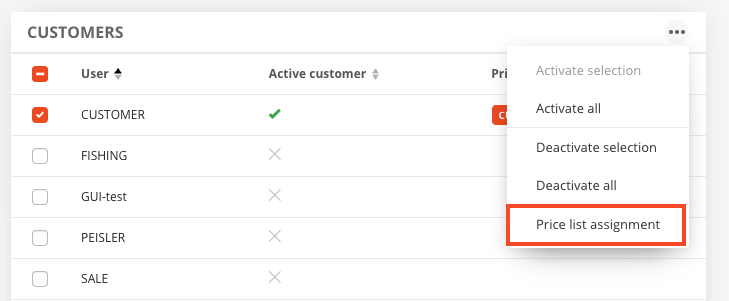
- Remove the desired lists in the Price list field.
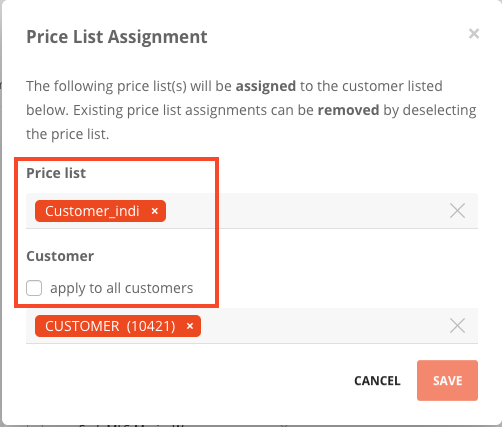
Remove the assignment in the Price lists tab
- Select the Price lists tab in the Price management area.
- In the More menu of the respective list, select the entry Unassign price list for the desired list.
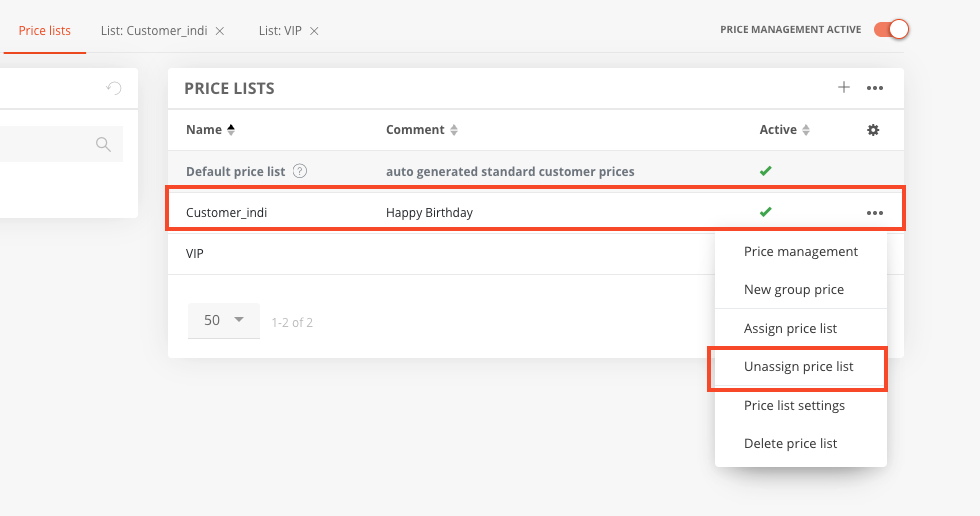
- Remove the desired lists in the Price list field as described above.
Group prices for TLD groups
Creating group prices for TLD groups
A group price can be created for all TLDs of the TLD groups ccTLDs, gTLDs and new gTLDs respectively. The discounted TLDs can be saved in a newly created price list or added to an existing individual price list.
- To create group prices, select Group prices in the tab of the respective price list in the More menu at the top right.
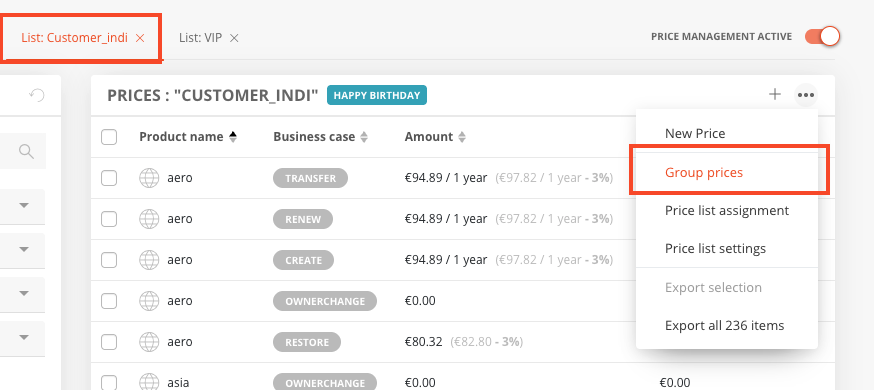
- Create a new price list or edit an existing one.
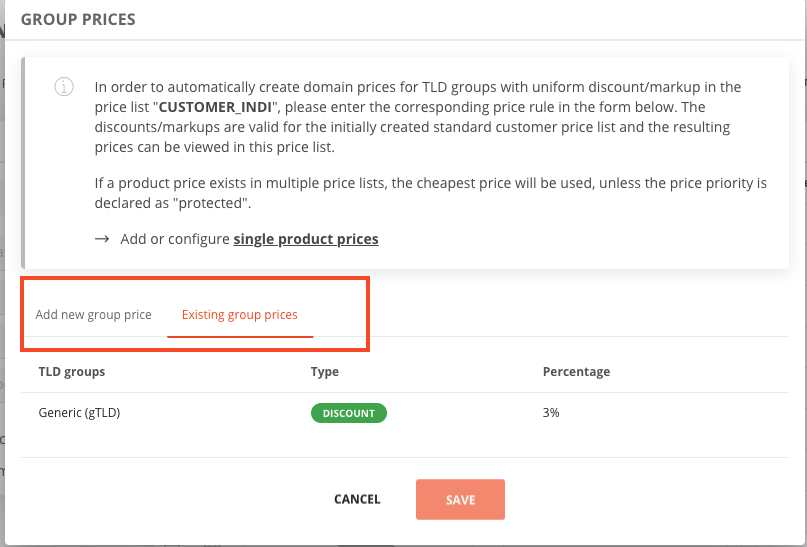
Example
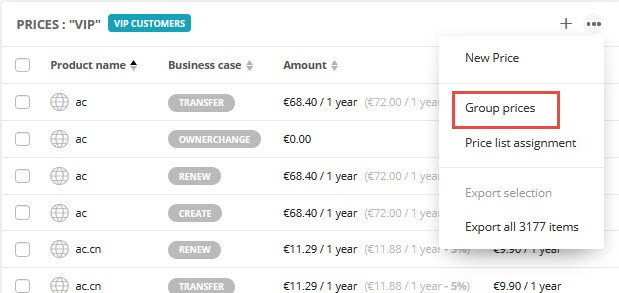
The price list “VIP” shall additionally contain TLDs with a group price. Here the customer specifies 5 % discount on all ccTLDs. This 5% is deducted from all ccTLDs included in the default price list and added to the “VIP” price list. The prices are then displayed with this discount. The prices are then displayed with this discount, possible negative margins are indicated.
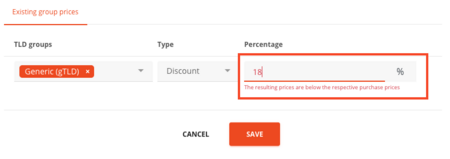
Editing group prices
Group prices can be modified at any time. They are modified in the price list in which they were created.
-
Open the price list in which they were defined.
-
Click on the Group prices action in the More menu
-
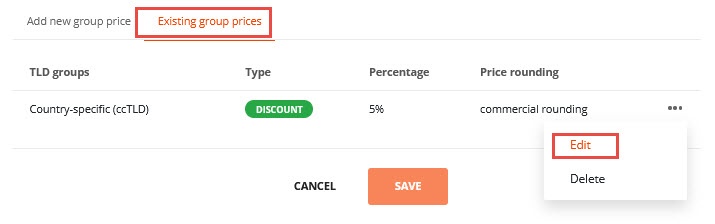
Select the desired group price and click on Edit in the corresponding More menu.
-
Change the value and save it.
Deleting group prices
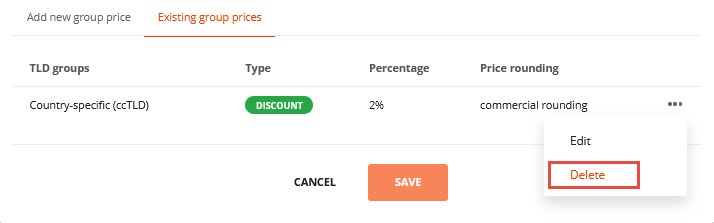
Group prices are always deleted for the whole group in the price list in which they were created.
- Open the price list in which they were set.
- Click on the Group prices action in the More menu
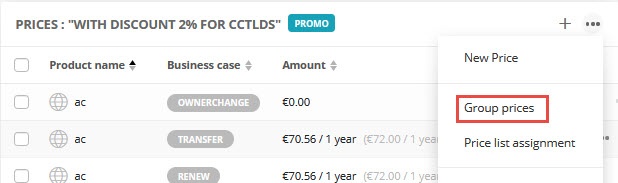
- Select the desired group price and click on Delete in the corresponding More menu.
Customers
In the Customers tab, all customers (these are the subusers of the AutoDNS user management), are listed in the customer overview. All customer-related actions for price management can be executed here. For each customer it is shown whether he is activated for price management and, if so, which price lists are assigned to him.
Activating customers for price management
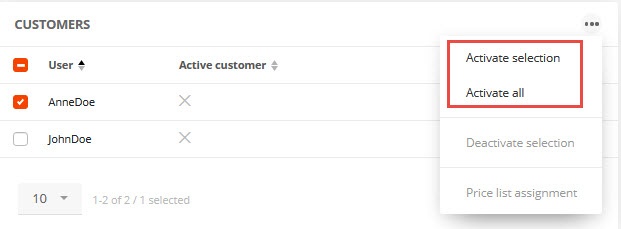
Customers are activated via the customer overview in the Price management area. Activated customers are marked with a green check, deactivated customers are marked with a gray cross.
- Select one or more customers in the Customers tab.
- Choose Activate selection in the More menu of the area or select Activate for individual customers in the More menu of the customer. To activate all customers, select Activate all in the More menu.
Deactivating customers for price management
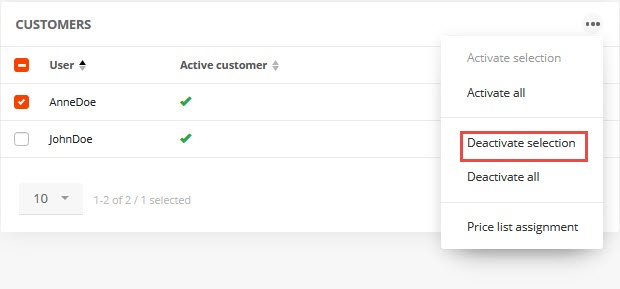
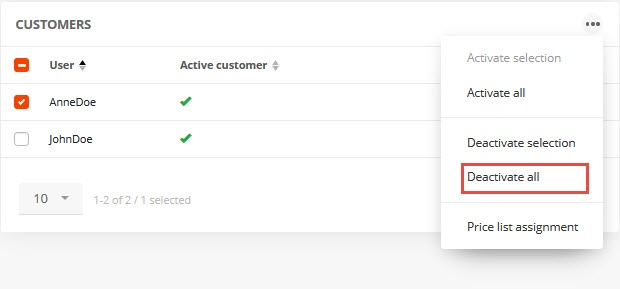
The deactivation of customers is done via the customer overview in the Price management area. When deactivating, all assigned price lists are removed. Deactivated customers are displayed with a gray cross in the overview. A further activation is possible at any time.
- In the Customers tab, select one or more customers and choose Deactivate selection in the More menu.
- To deactivate all customers, select Deactivate all in the More menu.
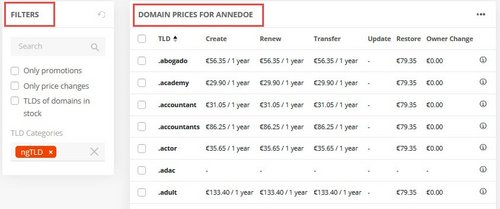
Displaying customer specified prices
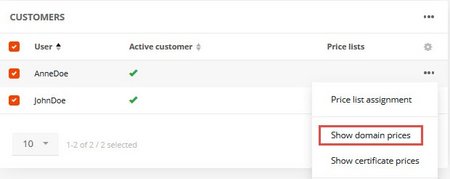
The customer-specific domain and certificate prices resulting from all assigned price lists and the standard price list can be displayed in the customer overview.
- In the More menu of the Customers tab, select the entry Show domain prices or Show certificate prices.
- Reduce the displayed result via the Filters if desired
Price management overview and notes
In the Price management section, data is provided for the price management overview. Reference is made to promo periods ending soon.
Daily the price management is monitored by the system for expiring price lists and cases of negative margins. If cases occur, notification emails are sent.
Special cases for currency
- If the EK currency does not correspond to the currency defined for price management, negative margins may occur due to the stagnating exchange rate. The exchange rate here represents the average rate of the previous month. The corresponding price synchronization takes place daily.
- If the currencies for accounting (billing), which is set when activating the price management, and that of the prices in the price management are different, then for the billing the prices from price management currency are converted to the accounting currency.
Was this article helpful?
Thanks for the feedback.